# Project Babbage: published documentation
Generated from the same CMS source as the website. Follow each guide's release/date boundaries.
# Metanet Client
Canonical: https://docs.projectbabbage.com/docs/metanet-client
Desktop wallet guides for installation, exchange top-ups, identity-key payments, recovery, BRC-100 builders and AI support.
Metanet Client is the desktop wallet for using Metanet apps with your identity, permissions and BSV. Use it alongside your web browser on macOS, Windows or Linux. On a phone or tablet, use [Metanet Explorer](https://docs.projectbabbage.com/docs/metanet-explorer), which combines the browser and wallet.
**Release covered: 0.8.11. Last verified: October 26, 2026.** Download the [official installers](https://desktop-binaries.getmetanet.com/) or read the [0.8.11 release notes](https://github.com/p2ppsr/metanet-client-downloads/releases/tag/v0.8.11). Guides describe the published release; changes on a development branch may arrive later.
## What do you want to do?
| Your task | Start here |
| --- | --- |
| Install the wallet and open your first app | [Desktop getting started](https://docs.projectbabbage.com/docs/metanet-client/getting-started) |
| Top up from an exchange or a traditional BSV wallet | [Buy BSV and fund Metanet with Mountaintops](https://docs.projectbabbage.com/docs/metanet-client/funding) |
| Send BSV from Metanet to an exchange | [Exchange deposit walkthrough](https://docs.projectbabbage.com/docs/metanet-client/funding#send-from-metanet-to-an-exchange) |
| Send, receive or move money between profiles | [Payments and profiles](https://docs.projectbabbage.com/docs/metanet-client/payments) |
| Protect your account or move to another device | [Backups and recovery](https://docs.projectbabbage.com/docs/metanet-client/backup-and-recovery) |
| Connect a website to the wallet | [Builder integration guide](https://docs.projectbabbage.com/docs/metanet-client/developers) |
| Fix a connection, permission or balance problem | [Client FAQ](https://docs.projectbabbage.com/docs/metanet-client/faq) |
| Answer customers or build with an AI assistant | [Support and AI agent guide](https://docs.projectbabbage.com/docs/metanet-client/agents) |
## Identity keys and addresses
Metanet apps normally identify recipients with an **identity key**. This is a public key, not an exchange deposit or withdrawal address. A traditional **type-1 BSV address** is a different representation used by many exchanges and older wallets. Do not paste an identity key into an exchange's address field.
[Mountaintops](https://mountaintops.net/) lets your connected Metanet wallet derive a traditional BSV address and then import funds sent there. The [funding walkthrough](https://docs.projectbabbage.com/docs/metanet-client/funding) covers the complete process, including the import step and its public-address privacy tradeoff.
## For builders
Use the BRC-100 interface through `WalletClient` from `@bsv/sdk`. The same application API can connect through the desktop bridge or Explorer's in-app browser. Users still approve sensitive requests in their wallet. Start with [a connection check that does not move funds](https://docs.projectbabbage.com/docs/metanet-client/developers), then follow the shared [wallet guides](https://docs.projectbabbage.com/docs/guides/wallet).
Older tutorials referring to `@babbage/metanet-client`, the original Metanet client or a browser extension describe other generations of the stack. For new integrations, follow these guides and the maintained [TypeScript stack](https://github.com/bsv-blockchain/ts-stack). An old recovery file or account is not automatically compatible with every newer wallet; preserve it and follow [migration guidance](https://docs.projectbabbage.com/docs/metanet-client/backup-and-recovery).
---
# Support and AI agent guide
Canonical: https://docs.projectbabbage.com/docs/metanet-client/agents
Canonical task links, accurate support wording, version boundaries and machine-readable documentation for support staff and AI assistants.
Use these references when answering customers or building an integration with an AI assistant. **Verified baseline: Client 0.8.11 and Explorer 1.2.1, October 26, 2026.** Prefer the relevant task page over a generic documentation homepage.
## Route the question
| Question or task | Canonical guide |
| --- | --- |
| Desktop setup | [Client getting started](https://docs.projectbabbage.com/docs/metanet-client/getting-started) |
| Mobile setup and browsing | [Explorer getting started](https://docs.projectbabbage.com/docs/metanet-explorer/getting-started) |
| Top up, exchange withdrawal/deposit, USD purchase question | [Funding and Mountaintops](https://docs.projectbabbage.com/docs/metanet-client/funding) |
| Missing send, receipt or own-profile funds | [Payments and profiles](https://docs.projectbabbage.com/docs/metanet-client/payments) |
| Lost phone/password, backups or migration | [Backups and recovery](https://docs.projectbabbage.com/docs/metanet-client/backup-and-recovery) |
| SDK integration | [Builder guide](https://docs.projectbabbage.com/docs/metanet-client/developers) |
| Desktop connection or permission trouble | [Client FAQ](https://docs.projectbabbage.com/docs/metanet-client/faq) |
| Mobile browser or wallet trouble | [Explorer FAQ](https://docs.projectbabbage.com/docs/metanet-explorer/faq) |
## Establish the context
Ask which product, installed version, operating system and network the person is using. For a missing balance, ask whether the source is an exchange/traditional wallet or a compatible identity-key wallet, and which step has completed. For a mobile connection problem, ask whether the website is open inside Explorer.
Use only the questions needed for the next diagnostic step. Explain the expected result and how to check it. A support reply should link directly to the relevant walkthrough and use the button labels shown there.
## Claims to get right
- An **identity key** is public identity/payment information, not a type-1 BSV address, private key or account recovery key.
- **Mountaintops** derives a traditional address through the connected wallet. The person receives there, then imports using **Get Balance → Import Money**. The address is public; do not present this as a private payment flow.
- **Buying BSV**, **withdrawing it**, **importing/receiving it** and **an app granting a purchase** are separate steps. Do not invent a USD/card purchase feature or promise a particular exchange, rate or completion time.
- State the direction explicitly: an **exchange withdrawal into Metanet** uses the wallet-derived Mountaintops address and import; a **Metanet payment into an exchange** uses the exchange's own BSV deposit address. Client 0.8.11 supports that type-1 address directly in **Send & Receive → Person or service → Recipient**; Mountaintops' outbound SHOUT BSV form is another route, including inside Explorer. Never swap the destination sources. A Client message that an original transaction is queued for automatic retry is a reason not to create another send. A free lookup coverage sunset does not end coin ownership; address and transaction eligibility are separate, and the Mountaintops release validated October 26 now enforces permanent receiving retirement while retaining pre-sunset import paths.
- An exchange withdrawal must use **BSV on the BSV network**. A familiar-looking address does not make BTC/BCH interchangeable with BSV.
- For Mountaintops, read the address's coverage before sharing or withdrawing. **Expired** means no new receiving or new-deposit watching. Update saved exchange/recurring payout instructions. Use **Check retained funds → Import Money** for historical coins; never promise discovery of post-expiration deposits or fixed sunset dates before the anchor/chain conditions.
- Mountaintops recovery uses encrypted on-chain **PushDrop records in wallet baskets**, not a Mountaintops server registry or certificate storage. Restore the same wallet account/profile and supported wallet data/storage service. No old browser/device, Mountaintops export or manually remembered key IDs are required. Required WoC history/proofs and current spend status can still be unavailable; report an incomplete check instead of loss or zero funds.
- Metadata saves cost a **1-satoshi output per record plus network fees**, with wallet approval; several records may be needed. Import/send transactions have their own fees. First import has no extra prepaid action-status write; publishing a mined address still needs funded metadata writes. A suggested 30-second mining budget is not guaranteed completion or indefinite coverage. Search/pause/continue are free. A found match requires **Save address to wallet · fees apply**, then **Use this address** as a separate paid preference save. Cross-device checkpoints require **Save progress to wallet · fees apply**; pausing alone does not persist them.
- A timeout does not prove a spend failed. Check the original transaction and retained payment before suggesting another send. Mountaintops uses native wallet action history to block repeats while sending/unconfirmed or uncertain, including on a restored device.
- **Transactions this session** clears on reload/leave. Use native wallet Activity and unfinished-action checks for earlier payments; an empty session list does not prove no spend occurred. There is no completed-history reload or extra token write for this list.
- A recovery key and wallet-data archive have different jobs. Do not promise recovery without checking the material and account path available.
- Explorer's wallet connection is inside its browser; opening an ordinary mobile Safari/Chrome tab is a different environment. iOS default-browser support is not included in the verified 1.2.1 release.
- Use `WalletClient` from `@bsv/sdk` for current examples. Preserve the user's approval and requesting origin. Do not claim that a development-branch feature has shipped.
## Mountaintops verification boundary
The current [PR6 release](https://github.com/p2ppsr/mountaintops/pull/6), checked October 26, 2026, fixes the older desktop binary-output compatibility and tagless receipt reads. Real native-wallet receiving and compiled fresh-origin address/coin recovery were checked. Do not call this a completed funded import or an actual browser-data-clearing round trip: new address save/selection, deliberate browser clearing and final funded import still await interactive qualification. A release passing CI and availability checks is a separate result.
## Consent and support data
Keep users in control of permissions, payments, purchases and recovery actions. Start integration diagnostics with version/network calls that do not spend funds. Do not request, retain or transmit wallet passwords, verification codes, recovery keys, private keys or full wallet archives. A transaction ID is public-chain information but may link a person's activity; request it privately only when needed.
When facts are missing, say what is known and what needs checking. Escalate an uncertain payment or recovery result through [Babbage support](https://projectbabbage.com/contact), with the failing step and redacted error. Do not manufacture a refund, restored account or completed transaction.
## Machine-readable access
The site's [llms.txt](https://docs.projectbabbage.com/llms.txt) indexes these guides. [llms-full.txt](https://docs.projectbabbage.com/llms-full.txt) contains the published documentation, and [the Markdown index](https://docs.projectbabbage.com/markdown/index.json) maps canonical page URLs to individual Markdown files. These exports are generated from the same content as the website at build time. Use the release/date information in the page and verify newer releases before answering version-sensitive questions.
---
# Backups and recovery
Canonical: https://docs.projectbabbage.com/docs/metanet-client/backup-and-recovery
Protect key access and wallet data separately, recover a phone/password, export encrypted files and prepare device migrations.
Protect both **access to your keys** and **the wallet data those keys use**. This guide covers Client 0.8.11 and Explorer 1.2.1, verified October 26, 2026.
## Keep these separate
| Material | Purpose |
| --- | --- |
| Wallet password and account recovery material | Unlock or recover access using the wallet's account flow |
| Recovery key/file saved during onboarding | Used by supported account-recovery flows; keep it secret and independent of the device |
| Connected wallet-storage backups | Copies of wallet records; check that synchronization actually completed |
| Exported wallet-data file | Transaction history, outputs, certificates and recovery records; it does **not** contain your signing keys |
| Encrypted archive passphrase | Decrypts that exported file; it is separate from the account's recovery key |
Knowing an identity key is not enough to recover its private keys. A recovery key alone is not a promise that every wallet record, profile, pending local payment or application file can be recreated. Applications may have their own encrypted data and backups too.
## Back up before changing devices
In Client, open **Settings → Manage backups**. Check the main location, connected backups and sync status. A copy stored inside the app on the same device is not protection against losing that device. Keep a separate backup and your recovery material before clearing data, reinstalling or switching the main storage location.
Use **Sync now** and check its result before relying on a connected copy. If a sync is interrupted, follow its resume/stop controls; completed pages are preserved. A provider response-size limit or proof-verification error needs its own resolution, not repeated destination switching.
In Explorer, open **Settings → Wallet data files**. For a new encrypted export, choose and confirm a passphrase of at least 12 characters. Wait for completion, then use the file's available sharing/export control to save an independent copy. A file listed only inside the app will not survive loss of the device. Store its passphrase separately.
## Recover an account
Client's **Account Recovery** offers **Lost Phone** and **Lost Password** paths. Choose the one matching what you still have and follow the wallet's prompts. Client 0.8.11 accepts a pasted recovery key or the `Metanet Recovery Key.txt` file saved at account creation. Recovery without the previous phone can lead to verification of a replacement number; **Update later** is available in the supported flow.
Explorer's account-recovery flow guides phone verification, the account recovery key, saving the recovered wallet on the device and choosing a new password. Complete any **Save Wallet to Continue** or **Finish Wallet Recovery** step before leaving it. Do not assume a desktop-specific key-file picker exists on mobile; Explorer provides a recovery-key input.
Which factors are needed depends on the recovery path and account configuration. Follow the actual prompts; support cannot reconstruct a missing private key from an identity key. If you still have a working signed-in device, preserve it while investigating.
## Import wallet data
Explorer's **Wallet data files** screen can inspect and import compatible wallet-data files. Use the file's existing passphrase. Preview the identity, network and record counts before choosing a merge or separate recovery copy. Files from another identity or network must not be treated as the active wallet's data.
The portability formats include BRC-38 wallet data and BRC-39 encrypted archives. An unencrypted BRC-38 file needs no archive passphrase but still contains private wallet history. A successful data import is distinct from recovering key access and from activating a restored copy. Check the resulting profile, balance and history before retiring the old installation.
## Older clients and migrations
Keep original recovery files and a working installation until the destination is verified. Do not feed an old seed, private-key dump or unrecognized archive into an unrelated website because both products use the word Metanet. Compatibility depends on the account scheme, network, key material and file format, not the product name alone.
For uncertain migrations, contact [Babbage support](https://projectbabbage.com/contact) with source/destination product versions and the type of backup you have, without sending its contents.
## Recover Mountaintops addresses on another device
The Mountaintops release validated October 26, 2026 stores encrypted PushDrop
saved address/checkpoint/retirement records through your BRC-100 wallet, alongside wallet-retained
coin evidence. Restore the same wallet account/profile **and its supported data/storage
service**, reopen Mountaintops and choose **Show My BSV Address**. The old browser,
old device, Mountaintops exports and manually saved key IDs are not required. This does
not replace the wallet's own recovery material or data backups. The original key-ID-1
address remains reconstructible; saved mined addresses and retirement history come from
wallet records. Only explicitly saved search checkpoints can resume across devices;
**Save progress to wallet · fees apply** is separate from free search/pause.
Unsaved matches/progress and **Transactions this session** do not survive a reload.
The native wallet keeps its own action history and unfinished-payment safeguards.
Do not delete or relinquish recovery outputs or the wallet data they depend on.
For an expired address, use **Check retained funds → Import Money** for verified
pre-expiration coins. Never reuse it for new receiving. Historical checks still depend
on WhatsOnChain providing required evidence and spend status; an unavailable or
incomplete response does not mean the coins are gone. Saving new metadata costs a
1-satoshi output per record plus network fees and wallet approval. First import does
not require a prepaid action-status record. Review unfinished wallet actions before
another send, including after restoration. See the [complete funding, expiration and
fees guide](https://docs.projectbabbage.com/docs/metanet-client/funding#wallet-backed-recovery-including-expired-addresses).
---
# Build with Client and Explorer
Canonical: https://docs.projectbabbage.com/docs/metanet-client/developers
Connect a web app through WalletClient from @bsv/sdk, verify version/network without spending, and handle permissions across desktop and mobile.
Connect a browser application to **Client 0.8.11** on desktop or **Explorer 1.2.1** on mobile using the BRC-100 `WalletClient` API. This guide was checked October 26, 2026. Client 0.8.11 ships with SDK 3.2.1; the example below uses that published version as a reproducible baseline, not a claim that every wallet bundles the same SDK.
## Make a connection without spending
In an existing TypeScript web project:
```bash
npm install @bsv/sdk@3.2.1
```
Add a button and a status element to your page:
```html
```
Then run this code in your browser application's entry module:
```ts
import { WalletClient } from '@bsv/sdk'
const wallet = new WalletClient('auto')
const button = document.querySelector('#connect-wallet')!
const status = document.querySelector('#wallet-status')!
button.addEventListener('click', async () => {
button.disabled = true
status.textContent = 'Waiting for your wallet. Check its window or prompt.'
try {
await wallet.waitForAuthentication()
const [{ version }, { network }] = await Promise.all([
wallet.getVersion({}),
wallet.getNetwork({})
])
status.textContent = `Connected: ${version} on ${network}`
} catch {
status.textContent = 'Connection did not complete. Open your wallet, check any prompt, then try again.'
} finally {
button.disabled = false
}
})
```
**Expected result:** the page reports the responding wallet version and network. No `createAction`, payment or private-key export is involved. Authentication still requires the user's wallet session; transport discovery is not user consent.
On desktop, serve the project on localhost with Client running and unlocked. On mobile, deploy the page to an HTTPS URL reachable from the phone and open it inside Explorer. `localhost` on the phone refers to the phone, not your development computer. Test production origins as well as development origins because permissions are scoped to the requesting app.
## Request identity only when the feature needs it
After a user chooses a feature that needs their public identity:
```ts
const { publicKey } = await wallet.getPublicKey({ identityKey: true })
```
Explain why it is needed and handle rejection. A returned public key identifies a wallet/profile; it does not alone prove that a server request is authenticated. Use an appropriate challenge/proof or [wallet-signed HTTP authentication](https://docs.projectbabbage.com/docs/guides/wallet/auth) for that purpose. Never ask for a seed, password, recovery key or raw private key.
## Desktop and mobile connection paths
| Environment | Connection path |
| --- | --- |
| Desktop browser with Client running | Local wallet bridge discovered by the SDK |
| Website opened inside Explorer | Wallet bridge in Explorer's WebView |
| Ordinary Safari/Chrome tab on the phone | Does not automatically acquire Explorer's injected wallet |
| Backend/server process | Cannot assume access to a customer's browser wallet; design an explicit authenticated interaction |
Client 0.8.11 reserves loopback ports **3301** (binary wallet wire), **3321** (JSON HTTP) and **2121** (HTTPS bridge). These are local connection details, not public wallet endpoints or ports to forward from a router. Use SDK discovery for normal app code. Another desktop BRC-100 wallet using those ports must be quit before launching Client.
The API is portable across compliant wallets; UX, transport and optional behavior still need testing. Do not hard-code an originator to impersonate another website, bypass permission checks or assume a wallet brand based solely on a successful connection.
## Add one capability at a time
Continue with [permissions](https://docs.projectbabbage.com/docs/guides/wallet/permissions), [transactions](https://docs.projectbabbage.com/docs/guides/wallet/transactions), [encryption](https://docs.projectbabbage.com/docs/guides/wallet/encryption), [signatures](https://docs.projectbabbage.com/docs/guides/wallet/signing) and [certificates](https://docs.projectbabbage.com/docs/guides/wallet/certificates).
For each feature, explain the requested capability before the prompt. Handle rejection, insufficient funds, wrong network, locked wallet, backgrounding and interrupted responses. Preserve a transaction reference or ID when one exists. Never automatically repeat a spend just because a timeout or delivery acknowledgement is missing. Reconcile the original operation first.
Before release, exercise a non-spending connection and identity flow in both Client and Explorer, then a separately approved low-value payment. Verify the recipient's acceptance and app outcome, not just the sender's HTTP success. Check denied/revoked permissions and account/profile changes as well.
## Current references and older examples
- [BRC-100 specification](https://github.com/bitcoin-sv/BRCs/blob/master/wallet/0100.md)
- [Maintained TypeScript SDK and Wallet Toolbox source](https://github.com/bsv-blockchain/ts-stack)
- [SDK documentation](https://bsv-blockchain.github.io/ts-sdk/)
- [Client release notes](https://github.com/p2ppsr/metanet-client-downloads/releases/tag/v0.8.11)
For new integrations, replace old `@babbage/metanet-client`/`MetanetDesktop` tutorial patterns with the current `@bsv/sdk` interface. Do not silently change a production integration: map its actual methods, permission behavior and transaction handling, then verify both wallet paths.
---
# Client FAQ and troubleshooting
Canonical: https://docs.projectbabbage.com/docs/metanet-client/faq
Answers about exchange funding, identity keys, wallet connections, permissions, recovery and Mountaintops session history and save fees.
Answers for **Metanet Client 0.8.11**, checked October 26, 2026. Mobile users should also read the [Explorer FAQ](https://docs.projectbabbage.com/docs/metanet-explorer/faq).
## How do I top up from an exchange?
An exchange commonly needs a traditional type-1 BSV address, while Metanet's native receive flow uses an identity key. Open [Mountaintops](https://mountaintops.net/) with Client connected, choose **Show My BSV Address**, withdraw BSV to that address, then use **Get Balance → Import Money**. Follow the complete [funding guide](https://docs.projectbabbage.com/docs/metanet-client/funding), including network, fees and privacy checks. Arrival at the address is not the same as import into your wallet.
## Can I buy BSV with USD inside Client?
Do not assume that a USD amount or a funding prompt is a fiat purchase facility. Buy BSV through your chosen provider if needed, then follow [the receiving/import steps](https://docs.projectbabbage.com/docs/metanet-client/funding). Provider access, limits, fees and settlement times vary; these docs do not promise a built-in card or bank purchase.
## How do I withdraw from Metanet to an exchange?
Get your **BSV deposit address** from your own exchange account. In Client 0.8.11, open **Send & Receive → Person or service** and paste a valid type-1 address into **Recipient**. Choose the sending profile, currency and amount, then review the payment. Mountaintops' **SHOUT BSV** form is another route, including inside Explorer. Follow the [outbound walkthrough](https://docs.projectbabbage.com/docs/metanet-client/funding#send-from-metanet-to-an-exchange). Check deposit minimums, network, fees and confirmation requirements. Save the transaction ID and do not send twice because exchange credit is delayed or Client reports an automatic retry. Depositing BSV is separate from selling it or withdrawing fiat.
## Is my identity key a Bitcoin address or a recovery key?
Neither. It is a public key used to identify your wallet/profile to compatible apps and payments. An exchange address is a different input. Your recovery key is secret account-recovery material and must never be shared with a sender, website or support agent.
## Why does a website say no wallet is installed?
Check that Client is running and unlocked, that no other BRC-100 desktop wallet owns the bridge, and that the website is open on the same computer. Bring Client forward and inspect any permission prompt. Browser local-network/security restrictions can affect localhost connections; record the actual error rather than disabling browser protection. Builders can use the [connection-only example](https://docs.projectbabbage.com/docs/metanet-client/developers) to isolate transport from payment failures.
## Why does Client say another wallet is running?
The binary, JSON and HTTPS bridges share ports 3301, 3321 and 2121 with other desktop wallets. Quit the competing wallet rather than launching more copies. Client owns the set together so an app is not accidentally connected to different wallets on different bridge ports.
## Why does a prompt appear for each app?
Permissions are tied to the requesting origin and capability. A different site, protocol, basket, certificate request or spending scope can need a separate decision. Read the origin and limits. Manage or revoke access in Client's app/permission controls; blanket approval is not a connection fix. The app should recover cleanly when you deny a request.
## My send timed out. Should I send again?
First inspect Activity, the pending payment and the recipient's Receive screen. A signed/broadcast payment may exist despite an interrupted acknowledgement. Client preserves signed payments for recovery. Reuse the retained payment workflow; do not create another send until you know what happened to the first one.
## I moved money to my own profile. Why is its balance unchanged?
In Client, choose the destination profile in **Send & Receive**, open Receive and use **Accept saved payment**. A local saved payment remains on the sending device until acceptance, so do not clear that app's data. See [payments and profiles](https://docs.projectbabbage.com/docs/metanet-client/payments). Explorer's own-profile receipt behavior differs; do not assume every product has the same buttons.
## I paid an app, but my purchase is missing. What now?
Check wallet Activity and the app's purchase history or receipt. Save the transaction ID and any error. Ask the app's support to reconcile the payment with the entitlement before paying again. A wallet debit, delivery acknowledgement and purchased content becoming available are distinct events.
## Why is my balance smaller than the amount I sent?
Check the selected profile and network, exact BSV/satoshi amount, exchange withdrawal fee, import/network fee and any separately disclosed wallet-account update. A currency preference changes the display. It does not turn BSV into a USD deposit. Use the transaction details to distinguish fees from funds waiting to be imported or received.
## Is saving a recovery key enough to back up everything?
Keep recovery material and wallet-data backups separately. A same-device copy is not protection against losing the device. Transaction history, certificates, local pending payments and application files may need their own durable copies. Follow [backups and recovery](https://docs.projectbabbage.com/docs/metanet-client/backup-and-recovery) before reinstalling or changing devices.
## How do I get useful help?
Contact [Babbage support](https://projectbabbage.com/contact). Include Client version, operating system, mainnet/testnet, the app URL and exact failing step/error. Say whether funds have a transaction ID and whether Activity or Receive shows them. Share identifying details privately and redact screenshots. Never send passwords, SMS codes, recovery keys, private keys or full wallet-data archives.
## Does a Mountaintops address expire? Are my coins lost?
Receiving and free-index coverage can expire under BRC-234. Read the address card and
**Refresh coverage** before a withdrawal. Before a date is known, the card names the
last passing stage and next activation that expires the address, or says no later cutoff
is scheduled at stage 27. Transaction eligibility still matters. There is no fixed date before the mainnet
block-1,000,000 anchor and later chain/volume/notice conditions. Once retired, the
address is permanently blocked for new receiving in Mountaintops. Replace it in saved
exchange and recurring-payout instructions. Coins received before expiration remain
yours: use **Check retained funds → Import Money**. Do not assume new deposits sent
after expiration will be discovered. See [address coverage](https://docs.projectbabbage.com/docs/metanet-client/funding#address-coverage-changes).
## Can I recover Mountaintops without the old browser or device?
Yes, with the same restored BRC-100 wallet account/profile and its supported wallet
data/storage service. **Show My BSV Address** reloads encrypted PushDrop records and
wallet-retained evidence. The original address remains derivable as well. No old
browser data, Mountaintops export or manually remembered key ID is required. Keep the
wallet's own backups; provider history/proofs and spend-status availability still
matter. A failed historical check is not proof that funds are gone. Follow
[wallet-backed recovery](https://docs.projectbabbage.com/docs/metanet-client/funding#wallet-backed-recovery-including-expired-addresses).
## Why does finding or selecting an address ask for a payment or permission?
Search, **Pause search** and **Continue search** are free browser computation.
A found match is not saved, shared or selected automatically. **Save address to wallet ·
fees apply** publishes its encrypted record; **Use this address** separately saves the
receiving preference. Each save creates a **1-satoshi output plus network fees**, with
wallet approval. **Save progress to wallet · fees apply** is another explicit record;
use **Resume saved stage N search** to continue that checkpoint on another device.
Unsaved progress remains only in the current page. These are separate operations,
not a fixed all-in price. Imports and outgoing payments have their own network fees.
An empty wallet's first import needs no extra prepaid action-status record. Review the
[fee table](https://docs.projectbabbage.com/docs/metanet-client/funding#fees-and-wallet-approvals); do not delete recovery
outputs or share an address whose save was not acknowledged.
## Why did Mountaintops transaction history disappear after reloading?
**Transactions this session** is a temporary display that clears when you reload or
leave the page. Your native wallet retains its own Activity/action records, saved
addresses and coin evidence. Native unfinished-action checks still protect against
repeating an uncertain payment. An empty session list is not proof that a payment
failed: check wallet Activity, the transaction ID and the recipient before sending again.
---
# Top up: Exchanges and Mountaintops
Canonical: https://docs.projectbabbage.com/docs/metanet-client/funding
Move BSV between Metanet and exchanges. Check address expiration, restore saved wallet records and review import and save fees.
**Use this guide to move BSV between Metanet and an exchange or traditional address wallet.** It applies to Client 0.8.11 and Explorer 1.2.1. Wallet releases were checked October 26, 2026; Mountaintops instructions match the [compatibility and explicit-save release](https://github.com/p2ppsr/mountaintops/pull/6) deployed and validated that day. An exchange withdrawal **funds Metanet**; sending from Metanet to an exchange is an **exchange deposit**.
## Choose the receiving method
| Where the BSV is coming from | What to use |
| --- | --- |
| Another compatible Metanet wallet | Your receiving profile's identity key and [wallet-to-wallet payments](https://docs.projectbabbage.com/docs/metanet-client/payments) |
| An exchange or traditional wallet asking for a type-1 BSV address | The address shown by Mountaintops while connected to your intended Metanet wallet/profile |
| Sending from Metanet to your exchange account | The exchange's own BSV deposit address, entered in Client 0.8.11's **Send & Receive** or Mountaintops' outbound **SHOUT BSV** form |
| You have USD or another fiat currency and have not bought BSV | First obtain BSV through a provider available to you; then use the appropriate receiving method above |
An identity key is **not** a traditional Bitcoin address. Do not convert it yourself or paste it into an exchange withdrawal form. Mountaintops derives its receiving key through your wallet's permissioned API; it does not require your private key or recovery key.
## Buy BSV versus top up Metanet
Buying BSV is the purchase step at your chosen provider. Withdrawing BSV moves it from that provider to a destination. Importing the received funds through Mountaintops makes those outputs available to your Metanet wallet.
These docs do not promise a built-in USD/card purchase flow, a particular exchange's availability, an exchange rate, a withdrawal minimum or a completion time. Check those details with your provider before paying. Select **BSV on the BSV network**; BTC and BCH are different assets/networks even when their address formats look similar.
## Receive through Mountaintops
1. **Choose the destination wallet and profile.** On desktop, launch and unlock Client, then open [mountaintops.net](https://mountaintops.net/) in your browser. On mobile, open that exact URL **inside Metanet Explorer**. Safari or Chrome on the phone does not automatically use Explorer's wallet.
2. **Select Show My BSV Address.** Review the wallet permission request. Confirm you are connected to the intended profile and network. For an ordinary exchange withdrawal, use your mainnet wallet. Use the **Receiving** address card, read its coverage warning and choose **Copy address**. Never use an address marked **Expired — do not send coins to this address**. Copy the address shown by your own connected wallet; a mainnet type-1 address starts with `1`. The prefix alone does not prove that the asset, network or owner is correct.
3. **Withdraw BSV to that address.** Check the entire address in the provider's confirmation screen. When practical, first use a small amount that exceeds the provider's withdrawal minimum and leaves room for transaction fees. Keep the withdrawal transaction ID. Never send to an address supplied in a support message instead of the address your own connected wallet produced.
4. **Return to the same wallet/profile and Mountaintops.** Select **Get Balance** on the address you used. Mountaintops verifies unspent outputs and retains deposit evidence in your wallet. An expired address instead has **Check retained funds** for historical coins. A provider may still be processing its withdrawal, or its transaction may need time to appear in the transaction-data service.
5. **Select Import Money.** Review and approve the wallet's import/signing prompts. This spends the received address outputs into your wallet's managed funds. The import transaction pays network fees, so the final wallet credit can be smaller. Importing your first coins does not require a prepaid action-status record. Saving address/search metadata is a separate wallet action with its own costs, described below. Wait for the import result, then check your wallet balance and Activity.
**Arrival at the Mountaintops address and successful import are different milestones.** Do not make another exchange withdrawal merely because your Metanet balance has not changed yet.
## Privacy and permissions
Mountaintops deliberately uses a public traditional address. Its address activity can be linked and viewed on-chain; its own interface explicitly warns about this. Use wallet-native identity-key payments when the sender supports them and you do not need an address bridge.
The wallet authorizes the derived public key and signatures needed for import. Review the origin and action rather than granting unrelated requests. The separate **SHOUT BSV** form sends money outward to an address; it is not the button for receiving or importing your withdrawal.
## Send from Metanet to an exchange
### Directly in Client 0.8.11
Client 0.8.11 supports **outgoing** payments to traditional type-1 addresses as well as identity keys. Open **Send & Receive**, choose the sending **Wallet profile**, select **Person or service**, and paste your exchange's BSV deposit address into **Recipient**. The wallet identifies a valid type-1 address and checks its checksum/network. Choose **Currency** explicitly, read **Amount (unit)** and the resulting satoshi amount, then review the payment before confirming. This does not make your receive identity key an exchange-compatible address; inbound funding still uses the receive/import path above.
Check your exchange's deposit minimum and confirmation policy first. Save the resulting transaction ID. If Client reports that the payment is queued for automatic retry, **do not send it again**; inspect Activity and the original payment. A network acknowledgement and a credit in your exchange account remain separate results.
### Through Mountaintops, including Explorer
1. **Get the destination from the exchange.** In your own exchange account, select **Deposit → BSV** and the BSV network. Check whether deposits are enabled, its minimum credit amount, required confirmations and supported address format. Copy the address shown there; do not use a Metanet identity key or an address someone sent in a support message.
2. **Open Mountaintops with the sending wallet.** Keep Client running and unlocked on desktop, or open Mountaintops inside Explorer on mobile. Select the profile whose spendable funds you intend to use. If money is still at your Mountaintops receiving address, finish **Import Money** first.
3. **Use the outbound form.** In **SHOUT BSV Across To Someone**, paste the exchange's address into **Recipient Address** and enter a positive amount in **Amount (BSV)**. The current mainnet form expects a type-1 address beginning with `1`; a different network/format is not a reason to alter the address. Enter BSV, not USD or a raw satoshi count, and use no more than eight decimal places. Leave enough in the wallet for fees and enough at the destination to meet the exchange's minimum.
4. **Review and approve once.** Select **SHOUT BSV**, then check the wallet's destination, amount, network and fees before approving the transaction. This is a real outgoing payment. When practical, send a small qualifying test deposit before a larger amount.
5. **Track both sides.** Save the transaction ID shown by Mountaintops and review wallet Activity. Check the exchange's deposit history and confirmation policy. Broadcast success does not prove that the exchange has credited your trading balance. Do not repeat the send merely because the exchange has not credited it yet.
Sending BSV to an exchange is distinct from selling it for USD or withdrawing fiat to a bank. Those later steps, availability and charges belong to the exchange. The public-address privacy tradeoff applies to outbound payments too.
If a send times out, compare the retained transaction/Activity with the destination's deposit history before attempting another payment. For a confirmed transaction that the exchange has not credited, ask its support to reconcile the transaction ID and its deposit requirements. Never provide your wallet's recovery material.
## Address coverage changes
Mountaintops now applies the [BRC-234 coverage schedule](https://github.com/bsv-blockchain/BRCs/blob/master/opinions/0234.md). These are receiving and free-index coverage rules, not the destruction of coins or invalidation of otherwise valid transactions. Provider adoption is voluntary. A matching address does not guarantee that an exchange's funding transaction satisfies the separate TXID/version coverage rules; inspect **Address details**. A filtered index total is not a spendable balance.
Read the address card's current coverage and any pending sunset notice before every withdrawal. Before a calendar date is known, the card states the stage through which its address filter passes and the next stage activation that expires it. At stage 27 it states that no later free-coverage cutoff is scheduled; that does not guarantee every funding transaction is covered. The schedule anchors at **mainnet block 1,000,000**; calendar gates, volume and chain-time notice/activation rules all matter. There is no fixed calendar expiration date before that anchor is established. A pending chain-time deadline is not a guaranteed wall-clock time. Use **Refresh coverage** rather than guessing dates from an address prefix.
Once Mountaintops records an address as expired, receiving there is permanently disabled: **Copy address** and **Use this address** are unavailable, and Mountaintops blocks sends to expired destinations. It stops checking that address for new deposits. External senders can still create on-chain payments; Mountaintops cannot stop them or promise discovery of deposits sent after expiration. Replace saved exchange withdrawal addresses, whitelists and recurring payout instructions before the old address expires.
### Find longer coverage
Under **Find longer coverage**, choose a **Search target** and select **Find longer-coverage address**. All 27 stage targets are listed; a target below the app's required stage is rejected. The suggested target estimates about **30 seconds** of browser work; it is a work budget, not a guaranteed completion time or permanent coverage. Search derives keys deterministically with sequential key IDs starting at 1.
**Searching, Pause search and Continue search are free browser computation.** Pausing keeps progress in the current page; it does not automatically save a checkpoint to the wallet. To resume on another device, choose **Save progress to wallet · fees apply**, review the wallet request and wait for acknowledgement. This creates a 1-satoshi encrypted record plus network fees. On reconnecting the same wallet, use **Resume saved stage N search**. Unsaved progress or a found-but-unsaved result can be lost when the page reloads; the same wallet can repeat the deterministic search.
When **Match found · not saved yet** appears, the result is not published, displayed as a usable address or selected for receiving. Choose **Save address to wallet · fees apply** and review the wallet's record and network fees. After the save and readback succeed, review **Found and saved. Review before switching**, then choose **Use this address**. Selection saves a separate preference record, also a 1-satoshi output plus network fees. Wait for the **Receiving** badge before copying the address for a withdrawal.
Changing the selected receiving address does not update an exchange's address book. Previous addresses remain under **Previous and saved addresses**, with their own coverage and historical funds. Mining an address also does not guarantee coverage of every transaction an external exchange creates.
## Wallet-backed recovery, including expired addresses
Restore the **same BRC-100 wallet account/profile and its supported wallet data/storage service**, then reopen Mountaintops and choose **Show My BSV Address**. Saved address publications, selections, explicit search checkpoints and permanent retirement history are encrypted on-chain PushDrop records in your wallet's basket. Deposit evidence is retained through the wallet too. Mountaintops is client-only; it does not keep a separate application-server registry or use certificate storage for these records. Recovery of saved records does not require the old browser's data, an open tab, the old device, exported Mountaintops files or manually remembered key IDs. Unsaved search work and the session transaction list are not restored. Keep the wallet's own account recovery and data backups available.
The original single-address scheme is retained as **Original address** (key ID 1) and can be reconstructed from the same wallet without a metadata-save transaction. Do not discard old addresses when selecting a mined one. For an expired address, select **Check retained funds**, then **Import Money** when verified historical coins are available. Expiration does not remove ownership or disable imports of coins received before sunset.
Historical checking uses wallet-retained evidence and exact known outputs. When needed, a first return can attempt a bounded confirmed-history lookup only through the last pre-expiration block. It depends on WhatsOnChain still serving the necessary history/proofs and current spend status; wallet-backed records cannot recreate provider data that is unavailable. Known pending transactions can be checked without reopening new-deposit discovery. An incomplete or failed check is **not** proof of a zero balance or lost coins. If an unfunded wallet cannot save the bounded-history completion marker, verified coins can still be imported; that bounded lookup may repeat until the marker can be saved.
If **Review unfinished wallet actions** appears, inspect the retained transaction and the native wallet's Activity/history. **Check wallet outcome** must establish the original result before another payment. **Cancel unsubmitted preparation** applies only to a preparation the wallet can acknowledge canceling. A sending/unconfirmed or uncertain action is not permission to create another send, including after restoring on a new device.
Mountaintops shows **Transactions this session**, which clears when you reload or leave the page. This is a temporary display; the native wallet keeps its own action records, and saved addresses and coin recovery do not depend on the list. An empty list does not prove a payment never happened. Use wallet Activity and the retained transaction ID to reconcile earlier payments. Mountaintops does not offer a completed-history reload or create additional history tokens for this list.
## Fees and wallet approvals
| Operation | Cost and approval to expect |
| --- | --- |
| Search, pause or continue in the current page | Free browser computation; no automatic address or progress save |
| Save address to wallet · fees apply | A **1-satoshi output plus network fees** for the encrypted address record; wait for save acknowledgement before using or sharing |
| Use this address | A separate preference save: a **1-satoshi output plus network fees**, with wallet approval |
| Save progress to wallet · fees apply | A **1-satoshi output plus network fees** for an explicit search checkpoint; resume it through the same wallet |
| Retirement or coverage metadata | Each encrypted PushDrop record creates a **1-satoshi output plus network fees**; one task can involve several records |
| Import received coins or SHOUT BSV | A real transaction with wallet/network fees and wallet approval; recipient amount, change and fees must be reviewed |
| Exchange purchase, withdrawal, deposit or fiat sale | The provider's own fees, minimums and confirmation rules; check them with that provider |
The 1-satoshi metadata output is not a fixed total fee or a fiat top-up price. Do not promise a universal network fee; inspect the wallet's actual request. An empty wallet can import its first existing coins without first paying for an extra action-status record, but the import still pays its network fee. Publishing a new mined address or saving metadata requires enough wallet funds for those writes. If the wallet cannot save a record, do not share an unacknowledged address; fund it through a supported wallet-native payment or recover/import existing coins first. Do not delete or relinquish recovery outputs to avoid the cost.
## If the money is not visible
| What you see | What to check next |
| --- | --- |
| No withdrawal transaction ID yet | Check the exchange/provider's withdrawal status. The provider may not have broadcast it. |
| A transaction ID but Get Balance shows zero | Verify BSV network, exact destination address and connected profile. Check whether the output was already spent/imported. Allow for data-service delay. |
| An expired address or restored device | Reconnect the same wallet/profile and restored wallet storage, use **Check retained funds**, then import verified pre-expiration coins. Never reuse it for a new withdrawal. |
| Mountaintops shows BSV but Client/Explorer does not | The import step may still be required. Return to the same identity/profile and review the import prompt. |
| Import times out or reports an error | Record the error and transaction IDs, then inspect wallet Activity and refresh the address balance before retrying. A timeout does not prove that nothing was broadcast. |
| An outbound exchange deposit is not credited | Verify its transaction ID, exact deposit address, asset/network, minimum amount and exchange confirmation policy. Check both wallet Activity and the exchange before sending again. |
| The wallet is not detected | Keep desktop Client running, or open Mountaintops inside Explorer on mobile. See the [connection FAQ](https://docs.projectbabbage.com/docs/metanet-client/faq). |
| A wallet permission request is waiting | Bring the wallet forward and review the requesting origin and expected basket/read scope. Denial or an incomplete coin read is not proof of a zero balance. |
| Transactions this session is empty after a reload | Check native wallet Activity and the original transaction ID. The temporary list clears intentionally; do not repeat a payment on that basis. |
For help, contact [Babbage support](https://projectbabbage.com/contact) with your platform, app version, network, the step that failed and the exact error. Share a transaction ID privately when needed; it exposes public transaction history. Never send passwords, verification codes, recovery keys, private keys or wallet-data files in a public support thread.
## A support answer you can reuse
> Metanet normally receives payments using an identity key. If your exchange asks for a traditional BSV address, open mountaintops.net with Client running, or inside Metanet Explorer. Choose Show My BSV Address, check that the selected address is eligible for receiving, use Copy address and withdraw BSV on the BSV network there. Then return to Get Balance and Import Money. Never send to an expired address; use Check retained funds only for historical coins. Receiving at the address and importing into Metanet are separate steps. Buying BSV happens with your chosen provider; this is the guide for getting it into your wallet.
Link customers directly to this page, then ask whether they are using desktop Client or mobile Explorer and which step they reached.
For the opposite direction, with a path that also works inside Explorer:
> To send BSV from Metanet into your exchange account, first copy your BSV deposit address from that exchange. Open mountaintops.net with Client running, or inside Explorer, and use the SHOUT BSV form with that destination and an amount in BSV. Review the wallet prompt, keep the transaction ID and allow for the exchange's deposit requirements. Sending BSV to an exchange, selling it and withdrawing USD are separate steps.
---
# Client: Getting started
Canonical: https://docs.projectbabbage.com/docs/metanet-client/getting-started
Install Metanet Client 0.8.11, set up or recover your account, fund it and connect your first app.
This walkthrough covers **Metanet Client 0.8.11**, verified October 26, 2026. You need a supported desktop computer, internet access and access to the phone number used for the default account setup. On mobile, follow [Explorer getting started](https://docs.projectbabbage.com/docs/metanet-explorer/getting-started).
## 1. Install the right build
Open the [official download page](https://desktop-binaries.getmetanet.com/) and choose macOS Apple Silicon, macOS Intel, Windows x64 or Linux x86_64. The [published release](https://github.com/p2ppsr/metanet-client-downloads/releases/tag/v0.8.11) also provides installers and update payloads. Use the installer for your platform; update payloads are for the app's updater.
Install and launch Metanet Client. If another BRC-100 desktop wallet is running, quit it first. These wallets share local connection ports, so only one can own the desktop bridge at a time. Opening Client again brings the existing instance forward.
If your operating system rejects an installer, check its origin, platform and version before continuing. Report the exact message through [Babbage support](https://projectbabbage.com/contact).
## 2. Set up or recover the right account
For ordinary use, keep the supplied mainnet, authentication and storage defaults. Advanced or testnet setups must use matching services and testnet funds throughout.
Complete the phone verification and wallet-password steps. Save the recovery key when prompted. On desktop you can save the `Metanet Recovery Key.txt` file; **File saved** confirms that the save completed. Cancelling the file chooser does not create a backup.
Already have an account? Use the existing-account or recovery flow rather than making a replacement account. Check the identity, network and storage configuration before funding it. See [backups and recovery](https://docs.projectbabbage.com/docs/metanet-client/backup-and-recovery) if your phone, password or device has changed.
Your password, verification codes and recovery material belong in the wallet's own interface. A website or support agent does not need them.
## 3. Add BSV when you need it
Opening the app and connecting a website are separate from funding the wallet. Paid app actions and some wallet-account updates require BSV and transaction fees.
- From another compatible Metanet wallet, use the receiving profile's identity key and the [Send & Receive flow](https://docs.projectbabbage.com/docs/metanet-client/payments).
- From an exchange or a wallet that requires a traditional address, follow [the Mountaintops funding walkthrough](https://docs.projectbabbage.com/docs/metanet-client/funding).
A fiat display such as USD expresses a BSV value in your preferred currency; it does not establish that a bank/card purchase has happened. Buying BSV, withdrawing it and importing it into Metanet are separate steps.
## 4. Open a Metanet app
Keep Client running and unlocked, then open the app's website in your desktop browser. When it requests a wallet capability, read the wallet prompt: the app origin, requested access, amount and scope should match your task. Approve only what you intend.
If the wallet window is behind the browser, bring it forward. A website waiting for permission can look stalled until its wallet prompt is answered. Denying a request should return control to the app; it is not a reason to approve broader permissions.
For your own website, use the [builder guide](https://docs.projectbabbage.com/docs/metanet-client/developers). A connection check should report the wallet version and network without creating a transaction.
## 5. Check the result
Confirm that you are using the intended profile and network. Review Activity after a payment or purchase; an app's timeout alone does not prove the transaction failed. Keep your recovery material and wallet-data backups current before changing computers or removing the app.
For common problems, continue to the [Client FAQ](https://docs.projectbabbage.com/docs/metanet-client/faq).
---
# Payments and profiles
Canonical: https://docs.projectbabbage.com/docs/metanet-client/payments
Send, receive and recover payments in Client 0.8.11 and Explorer 1.2.1, including transfers between your own profiles.
This guide covers **Client 0.8.11** and calls out **Explorer 1.2.1** differences. Last verified October 26, 2026. For exchange withdrawals, use [funding with Mountaintops](https://docs.projectbabbage.com/docs/metanet-client/funding).
## Receive from a compatible wallet
Open **Send & Receive** in Client and select the receiving **Wallet profile**. Share its identity key with a sender whose wallet supports identity-key payments. In Explorer, open **Receive** to view and share the receiving identity. Check the selected profile before copying it.
Review incoming payments in Receive and accept the intended payment. Explorer offers individual **Receive** actions and **Receive All** for waiting payments. Some transfers between your own Explorer profiles are received automatically; check the destination balance and incoming list before treating one as missing.
An identity key is public, but sharing it can link activity to you. It does not authorize a sender to spend your funds. Never share a recovery key in its place.
## Send a payment
1. Choose the sending profile and check its available balance and network.
2. Enter the recipient in the format the selected payment mode requests. An identity key and a traditional address are different inputs; do not substitute one for the other.
3. Enter the amount and read the displayed unit. **1 BSV = 100,000,000 satoshis.** A converted USD display is not a separate USD balance.
4. Review the recipient, source profile, amount and fees before confirming.
5. Check the resulting status and Activity. The recipient may need to accept the payment before it becomes spendable in their wallet.
For app purchases, also check the app's receipt or entitlement. A wallet transaction and the app granting access are separate outcomes. Keep the transaction ID and contact the app if access did not arrive; do not immediately buy again.
Client 0.8.11 can also send directly to a traditional type-1 BSV address. Choose **Person or service** and paste the address into **Recipient**. Check the selected **Currency**, **Amount (unit)** and network, especially for an exchange deposit. This outbound capability is separate from receiving an exchange withdrawal into Metanet. Explorer users can use Mountaintops' outbound form inside its browser. Follow [the exchange-deposit guide](https://docs.projectbabbage.com/docs/metanet-client/funding#send-from-metanet-to-an-exchange).
## Move money between your own Client profiles
In Client's **Send & Receive**, select the sending **Wallet profile** and use **My profiles** for the destination. Client preserves the signed payment on that device. Switch to the destination profile, open Receive and use **Accept saved payment** to credit it.
Selecting a destination profile alone does not accept a saved payment. Keep the original device's app data until it is accepted. A local saved payment is not guaranteed to exist on your other computer or phone.
New-profile funding checks whether the source can cover the payment and transaction fee. Profile/account updates can have a separately disclosed fee; read it before approving. Creating a profile does not move every balance, identity, permission or backup setting from another profile.
## Pending, interrupted or returned payments
Client saves signed payments before delivery. If a delivery acknowledgement is missing, use the retained payment and status information rather than creating a second send. A transaction can exist even when the sending app did not receive confirmation.
If the status is unclear, check Activity, the destination's Receive screen and any transaction ID first. Keep the original signed-payment record. Client asks for confirmation before returning a payment; a return is another wallet operation, not simply deleting a message.
See [payment troubleshooting](https://docs.projectbabbage.com/docs/metanet-client/faq) and [Explorer FAQ](https://docs.projectbabbage.com/docs/metanet-explorer/faq) for the next checks.
---
# Metanet Explorer
Canonical: https://docs.projectbabbage.com/docs/metanet-explorer
Use the Explorer 1.2.1 mobile browser and wallet on iOS or Android: setup, funding, payments, recovery and builder integration.
Metanet Explorer combines a mobile web browser with a BRC-100 wallet. Open Metanet websites inside Explorer to use identity, permissions, payments and certificates without moving your private keys into the website. For a computer's ordinary web browser, use [Metanet Client](https://docs.projectbabbage.com/docs/metanet-client).
**Release covered: 1.2.1. Last verified: October 26, 2026.** Get the official app from the [Apple App Store](https://apps.apple.com/us/app/metanet-explorer/id6752445658) or [Google Play](https://play.google.com/store/apps/details?id=app.metanet.explorer). The app identifier is `app.metanet.explorer`. Availability and device requirements depend on the store and region.
## Start with your task
- [Install, set up your wallet and browse](https://docs.projectbabbage.com/docs/metanet-explorer/getting-started).
- [Top up from an exchange using Mountaintops](https://docs.projectbabbage.com/docs/metanet-client/funding), opened inside Explorer.
- [Send, receive and manage profile payments](https://docs.projectbabbage.com/docs/metanet-client/payments).
- [Export wallet data or recover your account](https://docs.projectbabbage.com/docs/metanet-client/backup-and-recovery).
- [Fix connection, payment or browser problems](https://docs.projectbabbage.com/docs/metanet-explorer/faq).
- [Build a website that connects to both mobile and desktop wallets](https://docs.projectbabbage.com/docs/metanet-client/developers).
- [Answer support questions accurately with an AI assistant](https://docs.projectbabbage.com/docs/metanet-client/agents).
## Browser plus wallet
Ordinary browsing and wallet-enabled app use are different capabilities. A site opened in Explorer can request wallet access through its bridge; it does not receive approval simply because you visited. Read the requesting origin, capability and amount before granting permission.
The verified iOS 1.2.1 build does not include the entitlement needed to act as the system default browser. Open Explorer directly for these guides; do not depend on links from another app automatically arriving in it. Android and iOS system/browser behavior can differ.
## Current and older products
These guides describe the current Explorer mobile app, not an old browser extension, the archived desktop-wallet line or every product called Metanet. Keep older recovery material until a migration has been verified. Shared developer examples use `@bsv/sdk` and BRC-100 so they remain portable across compatible wallets.
---
# Explorer FAQ and troubleshooting
Canonical: https://docs.projectbabbage.com/docs/metanet-explorer/faq
Mobile wallet and browser help, exchange funding, recovery, and Mountaintops session history, address saves and wallet fees.
Answers for **Explorer 1.2.1**, checked October 26, 2026. For desktop behavior, use the [Client FAQ](https://docs.projectbabbage.com/docs/metanet-client/faq).
## Is Explorer a blockchain block explorer?
Here, Metanet Explorer is the **mobile browser and wallet**. These guides describe browsing websites and using wallet capabilities, not a site for searching arbitrary blocks and transactions.
## Why does a website work on desktop but not on my phone?
Open the site inside Explorer. A normal mobile Safari/Chrome tab does not automatically have Explorer's wallet bridge. Confirm your wallet is signed in, reopen the intended app tab and inspect any wallet prompt. Builders should test [SDK connection, origin and network](https://docs.projectbabbage.com/docs/metanet-client/developers) before investigating a paid action.
## How do I receive money from an exchange?
Open [mountaintops.net](https://mountaintops.net/) **inside Explorer**, choose **Show My BSV Address** and use that address for the exchange's BSV-network withdrawal. Return to **Get Balance → Import Money**. Do not paste your identity key into an exchange address field. Follow the [full funding walkthrough](https://docs.projectbabbage.com/docs/metanet-client/funding) for fees, timing, privacy and missing-funds checks.
## Does Explorer buy BSV for USD?
A USD display does not establish a card/bank purchase facility. Buy BSV with your chosen provider when needed, then withdraw and import it using the appropriate receive method. These guides do not promise an integrated fiat purchase or availability of a particular exchange.
## How do I send BSV back to an exchange?
Open Mountaintops inside Explorer with the intended sending profile. Get the exchange's BSV deposit address from your own exchange account, then use Mountaintops' **SHOUT BSV** form to enter the address and amount in BSV. Review the wallet prompt and follow the [exchange-deposit walkthrough](https://docs.projectbabbage.com/docs/metanet-client/funding#send-from-metanet-to-an-exchange). Check minimums, fees and confirmations, and retain the transaction ID. A sent transaction and a credited exchange balance are different milestones.
## Can I make it my default browser on iPhone?
The verified iOS 1.2.1 release lacks the required system default-browser entitlement. Open Explorer directly and enter the website URL there. A pending platform request or a later source change is not proof that the installed app supports the feature.
## Do I need to approve everything a site asks for?
No. Read the origin, capability, amount and scope. Decline requests that do not match your task. Manage the site's permissions through the wallet's permission controls. Changing an app origin or profile can change which grants apply; bypassing prompts is not a troubleshooting step.
## Why is a payment waiting in Receive?
Some identity-key payments need explicit receipt before they become spendable. Open Receive, inspect the sender/amount and choose **Receive**, or use **Receive All** for the waiting list. Explorer 1.2.1 also improves automatic receipt between your own profiles. Check the destination profile, Activity and incoming list before sending again.
## What if the app was backgrounded, closed or lost its connection?
Reopen it and check the relevant task state first. For recovery, finish any pending wallet-save/password stage. For a purchase, check Activity and the app's receipt. For a wallet-data import/export, inspect its saved job or file. Do not repeat a spend or delete app data just to clear an ambiguous status.
## Does exporting wallet data include my signing keys?
No. **Settings → Wallet data files** exports wallet history and records, separately from key recovery. Keep the account recovery material and encrypted-file passphrase too. A local file still inside the app is not an independent backup. Follow [backups and recovery](https://docs.projectbabbage.com/docs/metanet-client/backup-and-recovery) before reinstalling or replacing the phone.
## What should I send support?
Use [Babbage support](https://projectbabbage.com/contact) and include Explorer version, iOS/Android version, network, app URL, failing step and redacted error. Say whether the site was open inside Explorer and whether a transaction ID or pending receipt exists. Never send verification codes, passwords, recovery keys, private keys or full wallet-data files in a public conversation.
## Does a Mountaintops address expire? Are my coins lost?
Receiving and free-index coverage can expire under BRC-234. Read the address card and
**Refresh coverage** before a withdrawal. Before a date is known, the card names the
last passing stage and next activation that expires the address, or says no later cutoff
is scheduled at stage 27. Transaction eligibility still matters. There is no fixed date before the mainnet
block-1,000,000 anchor and later chain/volume/notice conditions. Once retired, the
address is permanently blocked for new receiving in Mountaintops. Replace it in saved
exchange and recurring-payout instructions. Coins received before expiration remain
yours: use **Check retained funds → Import Money**. Do not assume new deposits sent
after expiration will be discovered. See [address coverage](https://docs.projectbabbage.com/docs/metanet-client/funding#address-coverage-changes).
## Can I recover Mountaintops without the old browser or device?
Yes, with the same restored BRC-100 wallet account/profile and its supported wallet
data/storage service. **Show My BSV Address** reloads encrypted PushDrop records and
wallet-retained evidence. The original address remains derivable as well. No old
browser data, Mountaintops export or manually remembered key ID is required. Keep the
wallet's own backups; provider history/proofs and spend-status availability still
matter. A failed historical check is not proof that funds are gone. Follow
[wallet-backed recovery](https://docs.projectbabbage.com/docs/metanet-client/funding#wallet-backed-recovery-including-expired-addresses).
## Why does finding or selecting an address ask for a payment or permission?
Search, **Pause search** and **Continue search** are free browser computation.
A found match is not saved, shared or selected automatically. **Save address to wallet ·
fees apply** publishes its encrypted record; **Use this address** separately saves the
receiving preference. Each save creates a **1-satoshi output plus network fees**, with
wallet approval. **Save progress to wallet · fees apply** is another explicit record;
use **Resume saved stage N search** to continue that checkpoint on another device.
Unsaved progress remains only in the current page. These are separate operations,
not a fixed all-in price. Imports and outgoing payments have their own network fees.
An empty wallet's first import needs no extra prepaid action-status record. Review the
[fee table](https://docs.projectbabbage.com/docs/metanet-client/funding#fees-and-wallet-approvals); do not delete recovery
outputs or share an address whose save was not acknowledged.
## Why did Mountaintops transaction history disappear after reloading?
**Transactions this session** is a temporary display that clears when you reload or
leave the page. Your native wallet retains its own Activity/action records, saved
addresses and coin evidence. Native unfinished-action checks still protect against
repeating an uncertain payment. An empty session list is not proof that a payment
failed: check wallet Activity, the transaction ID and the recipient before sending again.
---
# Explorer: Getting started
Canonical: https://docs.projectbabbage.com/docs/metanet-explorer/getting-started
Install Explorer, set up the wallet, fund through Mountaintops inside the browser and open wallet-enabled websites.
Use **Metanet Explorer 1.2.1** on iOS or Android. These steps were verified against the published version and source on October 26, 2026.
## 1. Install the official app
Choose the [App Store](https://apps.apple.com/us/app/metanet-explorer/id6752445658) or [Google Play](https://play.google.com/store/apps/details?id=app.metanet.explorer) listing for **Metanet Explorer** by Project Babbage. Check store/device/region requirements there. Keep an existing signed-in installation and its backups until an update or migration is confirmed working.
## 2. Set up your wallet
Open Explorer. Use its wallet setup/sign-in flow for Metanet apps. Keep the supplied mainnet authentication/storage defaults unless you deliberately operate a compatible testnet or custom setup.
For a new account, follow phone verification, password and recovery-key prompts. Save the recovery material somewhere independent of the phone. Existing users should select the existing-account/recovery path rather than accidentally creating a new identity.
If you are recovering, complete any request to save the wallet on this device or finish password recovery before navigating away. See [backups and recovery](https://docs.projectbabbage.com/docs/metanet-client/backup-and-recovery) for the distinct key-access and wallet-data steps.
Ordinary browsing does not itself fund or authorize the wallet. You can explore a website before agreeing to its wallet requests.
## 3. Add BSV
Open **Receive** to find the receiving profile's identity key for compatible wallet-to-wallet payments. An exchange will usually ask for a traditional address instead. In that case, enter **https://mountaintops.net/** in Explorer's address bar and follow [the funding guide](https://docs.projectbabbage.com/docs/metanet-client/funding): **Show My BSV Address → exchange withdrawal → Get Balance → Import Money**.
Use the intended profile and BSV network throughout. A withdrawal reaching the address and its funds being imported into your wallet are separate milestones. A USD display is a currency conversion, not evidence of an in-app fiat purchase.
## 4. Open the app inside Explorer
Enter the app's HTTPS URL in Explorer's address bar. Safari or Chrome on your phone does not automatically connect to Explorer's wallet. If another app opens a link in the wrong browser, copy the intended URL into Explorer.
Use the browser's tab, navigation and menu controls to return to the site. When a site asks for identity, signatures, payments or other wallet capabilities, inspect its permission prompt and decide whether the request matches your task. Keep track of which tab and origin requested it.
On iOS 1.2.1, open Explorer directly; this release does not include system default-browser entitlement support.
## 5. Check payments and protect your data
Use **Send** or **Receive** for wallet payments. Review incoming waiting payments and accept the ones you intend; **Receive All** applies to the waiting list. Transfers between your own Explorer profiles may be received automatically. Confirm the destination balance rather than repeating a send because a notification was absent.
Before moving devices, open **Settings → Wallet data files**, make an encrypted export and save an independent copy. The file does not contain signing keys; keep account recovery material and the archive passphrase separately. If a payment or browser action is interrupted, check its state after reopening before trying again.
For exact payment distinctions, see [payments and profiles](https://docs.projectbabbage.com/docs/metanet-client/payments). For errors, see the [Explorer FAQ](https://docs.projectbabbage.com/docs/metanet-explorer/faq).
---
# Docs
Canonical: https://docs.projectbabbage.com/docs
Metanet Client and Explorer guides for users, builders and AI agents: setup, funding, payments, recovery, FAQs and portable BRC-100 integrations.
Use Metanet Client on desktop or Metanet Explorer on mobile, and build BSV applications with user-held keys. Start with the task you want to complete, then use the shared BRC-100 guides for portable integrations.
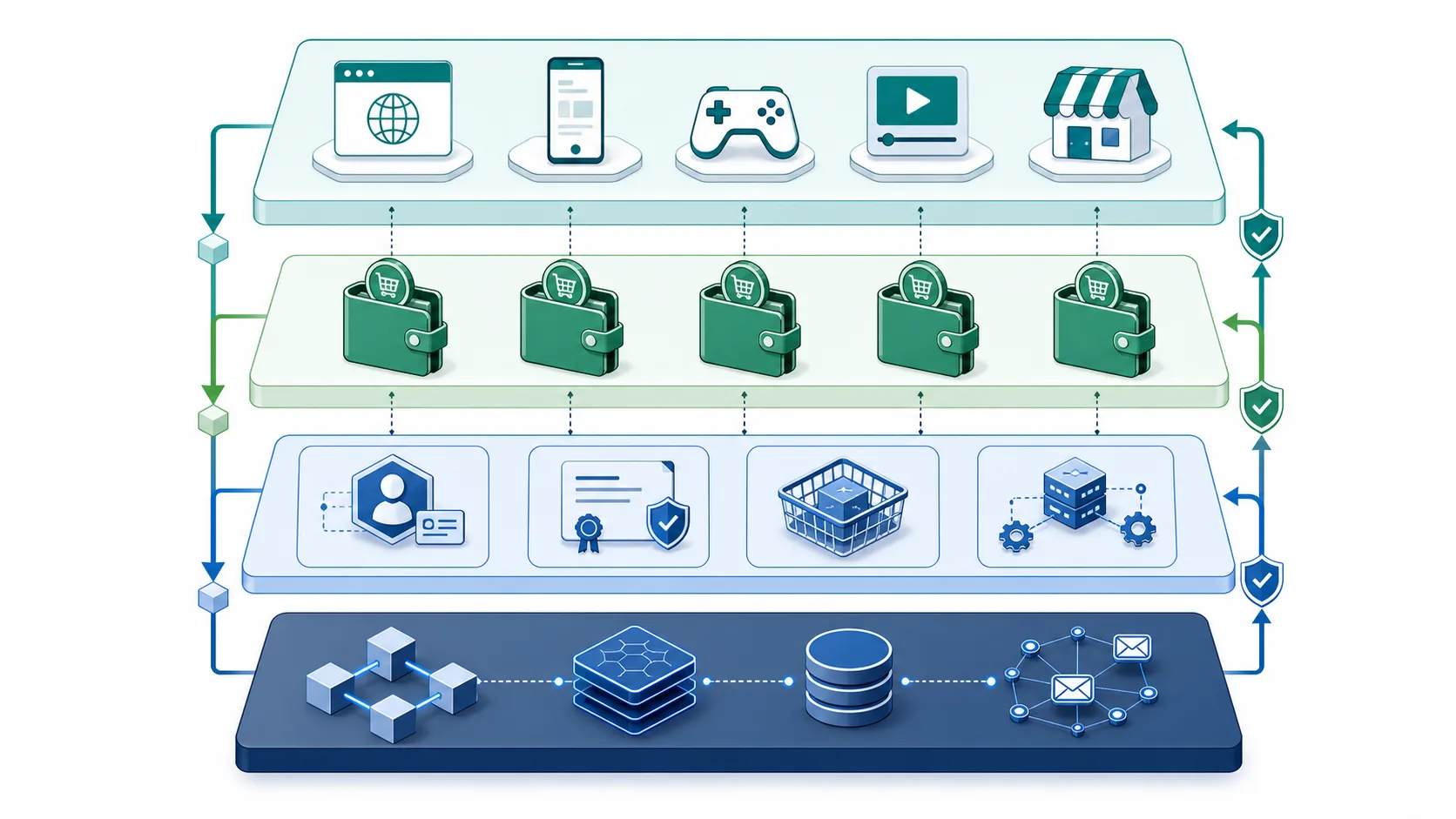
The core idea is simple: your app asks a wallet for permissioned capabilities through the BRC-100 interface. The wallet keeps private keys with the user, exposes identity and transaction tools to approved apps, and coordinates with BSV infrastructure such as overlays, MessageBox, UHRP storage, and HTTP 402 payment flows.
## Start Here
- [Metanet Client](https://docs.projectbabbage.com/docs/metanet-client): desktop setup, funding, payments, recovery and FAQs.
- [Metanet Explorer](https://docs.projectbabbage.com/docs/metanet-explorer): mobile browser/wallet setup and troubleshooting.
- [Top up from an exchange](https://docs.projectbabbage.com/docs/metanet-client/funding): identity keys, traditional addresses and Mountaintops import steps.
- [Support and AI agents](https://docs.projectbabbage.com/docs/metanet-client/agents): accurate answers and machine-readable references.
For a first no-spend success path, run the maintained starter at [use.bsv.tools](https://use.bsv.tools/) before using these docs as reference material.
## Choose Your Path
| Goal | Read |
|------|------|
| Learn the mental model | [Concepts](https://docs.projectbabbage.com/docs/concepts) |
| Build a working feature | [Quickstarts](https://docs.projectbabbage.com/docs/quickstarts) |
| Integrate a specific capability | [Guides](https://docs.projectbabbage.com/docs/guides) |
| Add wallet-native auth | [Wallet authentication](https://docs.projectbabbage.com/docs/guides/wallet/auth) |
| Store local UTXO state | [Baskets](https://docs.projectbabbage.com/docs/concepts/baskets) |
| Build public or multi-party state | [Overlays](https://docs.projectbabbage.com/docs/concepts/overlays) |
| Serve verifiable media | [Storage and UHRP](https://docs.projectbabbage.com/docs/concepts/storage) |
| Add payments | [Micropayments](https://docs.projectbabbage.com/docs/concepts/micropayments) |
## The 2026 BSV Developer Stack
Use these components as the default map unless a guide says otherwise:
- **BRC-100 wallet interface:** the portable app-to-wallet API.
- **Wallet implementations:** Metanet Client on desktop and Explorer on mobile; verify portability with other supported BRC-100 implementations such as BSV Desktop and BSV Browser.
- **TypeScript SDK:** `@bsv/sdk` for WalletClient, AuthFetch, transactions, PushDrop, certificates, storage helpers, and protocol utilities.
- **Wallet Toolbox:** wallet infrastructure for building and operating BRC-100 wallets across TypeScript, Go, and Python ecosystems.
- **Overlays:** topic managers and lookup services for app-specific public state.
- **MessageBox:** encrypted peer-to-peer delivery for direct app coordination.
- **UHRP storage:** content-addressed media hosting and resolution.
- **402 payments:** HTTP-native payment flows for APIs, media, and services.
## Current References
- [BRC-100 wallet interface](https://hub.bsvblockchain.org/brc/wallet/0100)
- [BSV TypeScript SDK](https://bsv-blockchain.github.io/ts-sdk/)
- [Wallet reference](https://bsv-blockchain.github.io/ts-sdk/reference/wallet/)
- [BSV Desktop](https://desktop.bsvb.tech/)
- [BSV Browser](https://mobile.bsvb.tech/)
- [TypeScript SDK and Wallet Toolbox source](https://github.com/bsv-blockchain/ts-stack)
## Pressure-Test the Premise
These docs explain how to build with the stack. For source-linked answers to common BSV objections, tradeoffs, and unresolved questions, use the [BSV evidence desk](https://bsv.place/?utm_source=docs.projectbabbage.com&utm_medium=referral&utm_campaign=durable_evidence&utm_content=docs_home).
---
# Concepts
Canonical: https://docs.projectbabbage.com/docs/concepts
Conceptual guides for BSV wallets, baskets, apps, certificates, trust, micropayments, overlays, contracts, MessageBox, and UHRP storage.
Concepts explain the "why" behind BSV application development. Read these when you need the mental model before choosing an API or production pattern.
## Recommended Order
1. [Wallets](https://docs.projectbabbage.com/docs/concepts/wallets)
2. [Baskets](https://docs.projectbabbage.com/docs/concepts/baskets)
3. [Apps](https://docs.projectbabbage.com/docs/concepts/apps)
4. [Certificates](https://docs.projectbabbage.com/docs/concepts/certificates)
5. [Micropayments](https://docs.projectbabbage.com/docs/concepts/micropayments)
6. [Overlays](https://docs.projectbabbage.com/docs/concepts/overlays)
7. [Storage](https://docs.projectbabbage.com/docs/concepts/storage)
---
# Apps
Canonical: https://docs.projectbabbage.com/docs/concepts/apps
How apps function in the Project Babbage ecosystem.
In the BSV Blockchain ecosystem, an **App** is more than just a piece of software that uses the BSV blockchain. It follows specific standards for its codebase structure and how it communicates with wallets, deployment metadata, and guides users through permission requests. Below are key ideas to help you understand what makes a BSV App unique.
## Core Concepts
1. **Deployment Metadata**
Every App should define its deployment metadata in a `deployment-info.json` file. [BRC-102](https://github.com/bitcoin-sv/BRCs/blob/master/apps/0102.md) provides a standardized structure so wallets, services, and other tools can quickly parse an App's declared resources and launch configurations (e.g., local dev with [LARS](https://github.com/p2ppsr/lars), deployment in the cloud with CARS).
2. **App Manifest and Permissions**
Frontends deployed online typically have a `manifest.json` that describes what permissions they require from users. Whether that's the ability to spend a certain amount of satoshis, read certificate fields, or interact with specific baskets of UTXOs, you can structure these permissions systematically. **Group Permissions** (described by [BRC-73](https://github.com/bitcoin-sv/BRCs/blob/master/wallet/0073.md)) also go here, making it simpler for users to approve or deny.
3. **Wallet Interaction**
Apps talk to wallets using vendor-neutral messaging layers. [BRC-100](https://hub.bsvblockchain.org/brc/wallet/0100) outlines the unified abstract approach for calling wallet functions like transaction creation or data decryption. Wallets like BSV Desktop use this standard.
4. **Overlay Services**
Apps can be frontend-only, backend-only, or both. If they have a `backend` folder, it describes one or more topic managers and lookup services responsible for tracking and managing the tokens it creates on the network. You can read about overlay concepts in other docs on this site.
## Curation of UTXOs and Tokens
Apps often rely on tokens or specialized transaction outputs to enable unique user experiences, like digital goods, loyalty points, etc:
- **Basket Model**: [BRC-46](https://github.com/bitcoin-sv/BRCs/blob/master/wallet/0046.md) groups outputs into "baskets" so an App can quickly locate or manage only the tokens relevant to its functionality.
- **Advanced Permission Schemes**: For future-proofing and extra security control over digital assets, upcoming standards like [BRC-99](https://github.com/bitcoin-sv/BRCs/blob/master/wallet/0099.md) let you define specialized "basket IDs" and rules that determine who can spend or view them.
## Why Build on BSV Standards?
1. **User Trust & Simplicity**
By implementing a standardized manifest and permission flow, you're fostering trust. Users understand precisely what they're granting, and the wallet can solicit clear, consistent prompts.
2. **Interoperability & Future-Proofing**
Thanks to a standardized approach, your App naturally works across different wallets that follow the same open protocols. As new permission systems evolve, your App can adopt them seamlessly.
3. **Reduced Development Overhead**
No need to tailor separate flows for each wallet or custom lifecycle. By referencing BRC documents, you can code once and cover every compliant wallet integration immediately.
## Next Steps
- **Bundles & Permissions**: Read about [BRC-73](https://github.com/bitcoin-sv/BRCs/blob/master/wallet/0073.md) to see how to request group permissions from a user via `manifest.json`.
- **Deployment Best Practices**: Learn more about how to structure your `deployment-info.json` in [BRC-102](https://github.com/bitcoin-sv/BRCs/blob/master/apps/0102.md).
- **Wallet Integration**: Familiarize yourself with [BRC-100](https://hub.bsvblockchain.org/brc/wallet/0100) for consistent wallet interactions across your app's entire user base.
- **In Practice**: Build your first app [by following this guide](https://docs.projectbabbage.com/docs/quickstarts/your-first-bsv-app).
Building an App with BSV standards ensures you tap into a robust and open ecosystem—where wallets, certificates, tokens, and data all interact seamlessly on a scalable BSV blockchain.
---
# Baskets & State Management
Canonical: https://docs.projectbabbage.com/docs/concepts/baskets
Learn how wallet baskets model user-local BSV app state as UTXOs, and when to use direct peer-to-peer flows or overlays instead.
A **basket** is a named collection of unspent transaction outputs tracked by a BRC-100 wallet. Baskets give applications a portable way to store user-local state as UTXOs while the wallet enforces permissions.
Baskets come from [BRC-46 output tracking](https://brc.dev/46). When an app creates an output, it can ask the wallet to place that output into a basket:
```json
{
"outputs": [
{
"lockingScript": "",
"outputDescription": "Application state output",
"satoshis": 1000,
"basket": "todo tokens",
"customInstructions": "{ ... }"
}
]
}
```
Later, the app can ask the wallet to list outputs in that basket. Spending an output removes it because the UTXO no longer exists. If an app no longer needs to track an unspent output, it can relinquish it without creating a spend.
## Why Baskets Matter
Baskets let developers model application state as outputs instead of rows in an app-owned database.
- **User-centered permissions:** the wallet decides which app can inspect or use which basket.
- **Portable state:** another compatible app can request the same basket if the user approves.
- **UTXO-native tokens:** an output can be the token, document pointer, access grant, or workflow item.
- **Less indexing work:** local state can live with the user until it needs public discovery.
## Three State Models
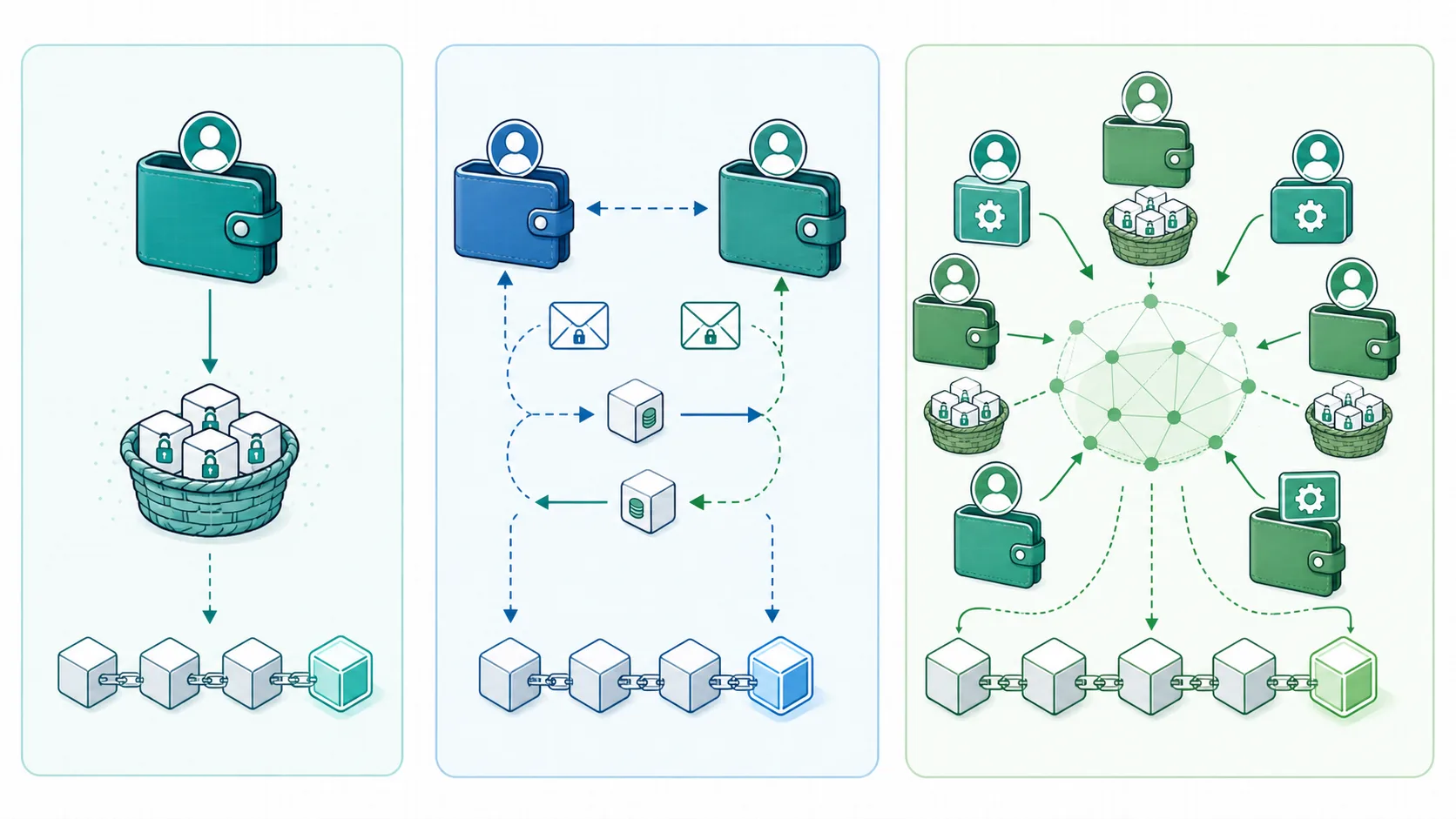
| Model | Where the state lives | Who updates it | Use it for |
|-------|----------------------|----------------|------------|
| Local basket | One user's wallet | That user and approved apps | Personal tasks, drafts, preferences, private tokens, app-local inventory |
| Direct peer-to-peer | Messages and transactions exchanged between wallets | The fixed participants | Chat, offers, invoices, private payment coordination, two-party contracts |
| Overlay | Public or permissioned overlay services tracking topic-specific outputs | Many participants under protocol rules | Marketplaces, public listings, discovery, scarce items, shared indexes |
The same app can use all three. A marketplace might keep drafts in a local basket, send buyer/seller messages through MessageBox, and publish active listings to an overlay.
## Local Basket Example
1. A to-do app creates one output per task.
2. Each output is placed in a `todo tokens` basket.
3. On launch, the app calls `listOutputs` for that basket.
4. Completing a task spends or relinquishes the output.
No server has to be the source of truth for the user's private task list.
## Direct Peer-to-Peer Example
1. Alice creates an offer and sends it to Bob through MessageBox.
2. Bob reviews the offer and returns a signed response.
3. The two wallets exchange encrypted messages and payment tokens until the workflow is complete.
This pattern is useful when exactly two parties need coordination and the state is not meant to be globally searchable.
## Overlay Example
1. A creator lists a digital item by creating a protocol-specific output.
2. A topic manager validates whether the output belongs in the marketplace topic.
3. Lookup services index valid outputs so apps can search current listings.
4. Buyers contact sellers or pay through the app's chosen protocol.
Use overlays when many users need a shared, queryable view of app state.
## Developer Tips
- Name baskets clearly and consistently.
- Request only the baskets and output details your feature needs.
- Use `customInstructions` for spending hints your app will need later.
- Paginate `listOutputs` results for large baskets.
- Prefer `relinquishOutput` when the app should stop tracking an unspent output without spending it.
- Move public or multi-party state into overlays instead of overloading a user's local basket.
## Related References
- [BRC-46 output baskets](https://brc.dev/46)
- [BRC-100 wallet interface](https://hub.bsvblockchain.org/brc/wallet/0100)
- [Wallet reference](https://bsv-blockchain.github.io/ts-sdk/reference/wallet/)
- [MessageBox client](https://github.com/bsv-blockchain/ts-stack/tree/main/packages/messaging/message-box-client)
- [Overlay services](https://github.com/bsv-blockchain/ts-stack/tree/main/packages/overlays/overlay)
---
# Certificates
Canonical: https://docs.projectbabbage.com/docs/concepts/certificates
How Certificates function within Project Babbage, highlighting cryptographic identity proof structures that respect user privacy.
In the BSV application ecosystem, **Certificates** provide verifiable proofs of identity or attributes, securely bound to user-controlled keys. They enable cryptographic attestation of facts (such as a user’s personal details) while preserving privacy through **selective disclosure**. Below is an overview of how certificates work, why they matter, and which BRCs define the format and protocols for creating, revealing, and exchanging them.
## Key Standards
1. **Identity Certificates (BRC-52)**
[BRC-52](https://github.com/bitcoin-sv/BRCs/blob/master/peer-to-peer/0052.md) introduces a privacy-centric, open-ended mechanism for linking a user’s public keys with specific identity data. Fields in these certificates are individually encrypted, ensuring users decide which pieces of info they disclose.
2. **Certificate Creation & Revelation (BRC-53)**
Adding to BRC-52, [BRC-53](https://github.com/bitcoin-sv/BRCs/blob/master/wallet/0053.md) defines how an application requests that a wallet both generate and prove certificates. It covers the handshake with a **certifier**, how keys are encrypted, and how partial revelations (i.e., selected fields only) are securely accomplished.
3. **Peer-to-Peer Mutual Authentication (BRC-103)**
[BRC-103](https://github.com/bitcoin-sv/BRCs/blob/master/peer-to-peer/0103.md) describes a protocol for two peers to mutually verify each other’s identities (and optional attributes). It leverages identity certificates under BRC-52/53 and standardizes the message flow so each party authenticates the other in a symmetrical, secure exchange.
## How Certificates Work
1. **Data Ownership & Encryption**
A certificate is composed of fields (e.g., “first_name,” “city,” “profile_picture”) individually encrypted with a unique key, so only the certificate holder can decrypt or re-encrypt them for authorized verifiers.
2. **Certificate Signing**
A **certifier**—such as a trusted authority or an automated service—digitally signs the certificate data, guaranteeing that the attributes (once decrypted) are valid and unmodified.
3. **Selective Disclosure**
Users retain control over which fields they share. When a verifier requests certain certificate fields, the user’s wallet re-encrypts those fields’ keys for that verifier only. This is the core of BRC-52’s privacy-first design, extended by BRC-53.
4. **Revocation Outpoint**
Certificates optionally include an on-chain outpoint that the certifier can spend to revoke a certificate. This real-time blockchain check avoids reliance on off-chain certificate revocation lists.
## Workflow Overview
1. **Application Requests**: An App (or website, service, etc.) asks the user’s wallet (via BRC-53) to create or prove a certificate.
2. **User Consent**: The wallet prompts the user to confirm what data fields the App can see.
3. **Certifier Interaction**: If creating a new certificate, the wallet contacts the certifier, obtains signatures, and stores the relevant encryption keys.
4. **Final Proof**: The wallet supplies the App (or another verifier) with a partially unencrypted certificate (only the allowed fields) and the certifier’s signature.
## Why Certificates Matter
1. **Privacy & Control**
Traditional ID systems often expose unnecessary info. Metanet certificates, in contrast, let users reveal only minimal data, safeguarding sensitive details.
2. **Decentralized Identity**
There’s no single identity provider that can block or remove your identity. Instead, multiple certifiers can coexist, and you choose whom you trust.
3. **Security & Authenticity**
Certificates inherit the cryptographic strength of BSV-based signing. Verifiers can confirm authenticity by checking each certificate’s on-chain revocation status.
4. **Interoperability**
By adhering to BRC-52, BRC-53, and BRC-103, any certified data can be shared across apps and wallets with consistent, open protocols rather than one-off integrations.
## Next Steps
- **Check out [MarsCast](https://github.com/p2ppsr/mars-cast)**: A codebase implementing micropayment monetization of Martian weather data, but only if you have a Cool Person Certificate!
- **Learn Identity Certificates**: Read [BRC-52](https://github.com/bitcoin-sv/BRCs/blob/master/peer-to-peer/0052.md) for in-depth data structures and field-level encryption.
- **Request & Prove**: Implement user flows aligned with [BRC-53](https://github.com/bitcoin-sv/BRCs/blob/master/wallet/0053.md) for ephemeral or persistent certificate issuance and partial proofs.
- **Mutual Authentication**: Check [BRC-103](https://github.com/bitcoin-sv/BRCs/blob/master/peer-to-peer/0103.md) to see how two peers can authenticate each other (and possibly exchange specifics) for advanced synergy among users, wallets, and apps.
Certificates usher in an era of flexible, user-centric identity on the BSV blockchain, letting you harness cryptographic trust without sacrificing privacy or interoperability.
---
# Contracts
Canonical: https://docs.projectbabbage.com/docs/concepts/contracts
Contracts leverage BSV scripting capabilities to define and enforce constraints among parties. This automation can make legal processes more efficient but it's not a replacement.
Contracts on the BSV Blockchain start with a simple but powerful concept: *a token is a piece of value, stored as an unspent transaction output (UTXO) in Bitcoin*. By attaching conditions—often written as a **locking script**—to these tokens, people can start modeling agreements directly on-chain. Below is a broad overview of how that works, why it matters, and how it fits with traditional legal ideas.
## UTXOs as Tokens
BSV treats each unspent transaction output (UTXO) like a discrete token. Each token is a slice of value that can be locked and unlocked according to a script. When a UTXO is locked, it effectively contains rules dictating *how* the value can be spent in the future. These rules can be as simple as *"only unlocked by a matching signature"* or as elaborate as multi-party Smart Contracts with sophisticated conditions.
### Contracts in Terms of UTXOs
Think of a UTXO as the token-with-rules:
1. **The token:** the actual bits of value (satoshis) you’re controlling.
2. **The rules (locking script):** code that states *who* can spend this token and *under what circumstances*.
When people talk about “Smart Contracts,” they’re talking about these rules as code—sometimes written in a higher-level language like **sCrypt**, which then compiles down into “byte code” (Bitcoin script) placed in the UTXO.
## Two Types of On-Chain Contracts
1. **Multilateral Contracts:**
These are agreements among specific parties. Each party has some role—perhaps providing different inputs or signatures. For example, imagine two businesses that create a contract output together: the locking script enforces payment conditions, timelines, or other constraints the businesses need to abide by. To spend or “move” that output, they must satisfy the script’s rules.
2. **Unilateral Contracts (Bounties or Puzzles):**
Sometimes an offer is open to anyone who fulfills certain conditions. A puzzle on the blockchain might say, “Whoever can supply the secret number can claim the funds in this UTXO,” or a more practical scenario might be a bug bounty. The script enforces the payoff automatically: *if you meet the condition, the network recognizes your right to claim the tokens.*
## How Contracts Are “Enforced” by the Network
Enforcement is straightforward:
1. You propose a locking script with your UTXO (the “offer”).
2. Another party (or any party, in the case of a unilateral contract) attempts to satisfy the conditions (the “acceptance”).
3. Some form of “consideration” is involved—usually in the form of satoshis or other digital assets under control.
4. With “intention to be bound,” you’ve effectively signaled that you want this locking script to matter—so the network sees the final resolution as legitimate.
The blockchain’s miners validate that each spending of a UTXO meets the script’s rules. If the transaction meets the script requirements, it is accepted onto the chain. If not, the attempted spend is invalid.
## Legal Aspects: Not a Replacement, But a Supplement
Legally speaking, a contract often requires:
1. **Offer**
2. **Acceptance**
3. **Consideration**
4. **Intention to be bound**
Placing logic on the blockchain doesn’t let you ignore real-world laws or processes. *Actual* legal disputes can still arise, and no technology automatically overrides that. Instead, a blockchain contract helps carry out an agreement’s terms *when all parties willingly follow the chain’s rules.* It’s like a self-checking tool: if you meet the script, it moves forward. If you don’t, it cannot.
In practice, blockchain-based scripts can power everything from simple payment restrictions to complex multiparty deals. But they don’t invalidate the fact that human beings must still behave lawfully, can still raise lawsuits if fraud or duress occurs, and so forth. The chain just enables a transparent, automated mechanism for finalizing the deals that participants *have broadly agreed upon*.
## sCrypt and Other High-Level Tools
On BSV, writing these locking scripts directly in raw Bitcoin script can be cumbersome. That’s why tools like **sCrypt** exist, offering a “smart contract language” that compiles down to the lower-level script. So you can reason about your contract logic in something that looks like TypeScript or JavaScript-like syntax, then let the compiler produce the final script for the blockchain.
For example, you might specify:
- Which participants can spend the UTXO.
- How much time must elapse.
- Conditions under which the contract should “refund” the value, or pay a bounty.
Your sCrypt code becomes the actual puzzle (locking script) in the UTXO, controlling *if* and *how* that UTXO is spent.
## Tying It All Together
1. **Every BSV output is a token**: With some quantity of satoshis (the “value”).
2. **Scripts govern the conditions**: A locking script sits on each token, specifying how the next transaction spends it.
3. **Contracts are formed**: Bilateral/multilateral (between named participants) or unilateral (open bounties). The code enforces mechanical terms.
4. **Higher-level languages help us**: sCrypt (and others on top of the BSV protocol) allow more advanced rules.
5. **Real-world laws still apply**: The blockchain doesn’t replace courts or legal disputes; it simply provides an automated path *if all participants abide by the coded terms.*
This synergy—of well-defined UTXOs, code-based rules, and real-world contractual elements—enables strong, automated enforcement. *But* it also remains anchored in everyday legal frameworks, ensuring that while the technology can streamline and self-execute, it doesn’t exist in a legal vacuum.
In short, *BSV makes the idea of on-chain contracts tangible.* The tokens (UTXOs) carry value; the scripts tie value to the contract logic; if your logic is met by the right party, the network “settles” that contract automatically. Meanwhile, there’s no discarding the real-world context. Blockchain is an innovative layer of enforcement, *not* a replacement for the law.
---
# Micropayments
Canonical: https://docs.projectbabbage.com/docs/concepts/micropayments
Discusses micropayment capabilities in Project Babbage, highlighting how Bitcoin SV’s low transaction fees enable new business models involving very small value transfers.
Micropayments are very small payment transactions—often just fractions of a cent—which enable business models that would otherwise be infeasible with higher transaction fees or slower settlement times. On a high level, the concept of micropayments is useful to:
1. **Unlock Entirely New Markets**
- Services that charge only a few cents (or even fractions of a cent) per use can cater to users who want to pay strictly for what they consume.
- Content creators can monetize individual views, listens, or other user interactions directly, without forcing consumers into subscription bundles or ad-dependent models.
2. **Improve User and Creator Incentives**
- With micropayments, creators receive direct compensation from their audience, rather than solely from advertisers or sponsors.
- Consumers pay only for content they genuinely want—aligning incentives for producers to focus on high-quality output.
3. **Enable Fine-Grained Pay-Per-Use**
- IoT devices, pay-per-API-call platforms, or real-time streaming services can charge extremely small amounts for each unit of usage.
- This opens up new revenue sources for businesses and lowers barriers for customers, as they do not have to commit to large upfront costs.
4. **Reduce Friction**
- Leveraging the BSV Blockchain’s low fees and high throughput, micropayments can be executed swiftly and at scale.
- This low friction encourages spontaneous payments, immediate tipping, and granular value exchange between peers.
### Why BSV Specifically?
The network has a stable protocol and high transaction capacity, allowing fees to remain low even under heavy usage. This makes micropayment services viable at scale, where each transaction can cost far less than one cent. Because BSV’s UTXO model and Simplified Payment Verification (SPV) approach allow for lightweight transaction validation, micropayments can be processed efficiently and directly peer-to-peer.
---
## Recommended Developer Tools & Resources
- **[AuthFetch Client](https://bsv-blockchain.github.io/ts-sdk/reference/auth/#class-authfetch)** (from the `@bsv/sdk` library)
Streamlines the process of integrating micropayment functionality into web and mobile applications, handling mutual authentication and automatically paying 402 (Payment Required) responses.
- **[Payment Express Middleware](https://github.com/bsv-blockchain/ts-stack/tree/main/packages/middleware/payment-express-middleware)**
A server-side module built for BSV-based services. It helps backend applications easily respond with appropriate payment details and verify incoming micropayment transactions.
- **[PeerPayClient](https://github.com/bsv-blockchain/ts-stack/tree/main/packages/messaging/message-box-client)** (from the `@bsv/message-box-client` library)
Facilitates direct, peer-to-peer micropayments between users. Perfect for store-and-forward or live communication scenarios where users or devices exchange small, frequent payments in real time.
By leveraging BSV’s scalability and these existing development tools, you can pioneer new micropayment-driven business models and deliver smoother, more aligned experiences for both creators and consumers.
---
# Overlays
Canonical: https://docs.projectbabbage.com/docs/concepts/overlays
Overlays serve as specialized layers on top of the BSV blockchain, allowing nodes to focus on specific transaction topics or custom business logic.
Overlay services are an essential piece of BSV's architecture that make it far easier to build scalable applications without needing to index the entire blockchain. Below is a short conceptual guide covering *what* they are, *when* you might use them, and *why* they’re so helpful.
## **What Are Overlay Services?**
Overlay services are specialized **application-focused layers** that run “on top” of the base BSV network. Each overlay service tracks only the specific transactions or data that are relevant to its own focus (its “topic”), storing and making that data queryable via a standard API.
- **Topic Managers**: The code that decides which new transactions get admitted into the overlay’s state and which known records get removed or updated. Essentially, this logic filters out everything that’s irrelevant to your app.
- **Lookup Services**: The code that provides a query endpoint for the data the topic manager has collected. Instead of you scanning the entire blockchain, you simply ask the overlay’s “lookup” API for exactly what you need.
By combining these two parts, an overlay service appears to your app as though it’s a normal database, but under the hood it remains grounded in the BSV blockchain. All admitted data is backed by Simplified Payment Verification (SPV) to ensure it’s genuinely confirmed on-chain.
## **When Do You Use Overlay Services?**
Overlay services come into play any time you want to build an application that needs shared or global state, or that must track particular outputs on the BSV blockchain without scanning it all:
1. **You need to manage on-chain data for many users**
If your app deals with tokens, counters, auctions, user entries, or any multi-user state, you can have an overlay track that data so all your users see the same, consistent global view.
2. **You require queries beyond a single user’s scope**
A user’s own wallet can track data that belongs specifically to them, but for a cross-user application (e.g., leaderboards, a market of items, or game states), you need a broader vantage point. An overlay’s lookup service can answer global queries so every participant sees “the big picture.”
3. **You want strong SPV-backed assurance**
Because overlay services rely on real blockchain confirmations and SPV proofs, they provide a verifiable record of transactions, bridging your app logic with unforgeable on-chain data integrity.
4. **You’d prefer not to ingest the entire blockchain**
Instead of running a full node or building a custom indexer, overlays let you track precisely the outputs and transactions you care about. This drastically reduces overhead, which matters for large-scale or specialized applications.
## **Why Are They Helpful?**
1. **Scalability**
Rather than one node doing all the heavy lifting of scanning the entire blockchain for every possible use case, the workload is split across many overlay services—each focusing on its own topic. This approach scales as BSV’s transaction volume grows.
2. **Rapid Development**
An overlay service acts like a typical backend microservice. Your front end can talk to it via familiar REST or HTTP-based calls:
- **`/submit`** to send transactions related to your topic.
- **`/lookup`** to retrieve or filter the data your app needs.
Meanwhile, the service automatically filters away everything irrelevant, so you don’t have to build a custom index or handle raw blockchain parsing.
3. **Custom Logic and Data**
You can implement precisely the topic logic your application needs. For example, if you have a “MeterCounter” app that increments numbers on-chain, you define a topic manager that admits only those “counter” transactions. This custom vantage point makes development far more streamlined—your overlay is effectively a “custom node,” but only for your corner of the data.
4. **Distributed Ownership & Public or Private**
Multiple overlays can exist to serve different user groups, or to provide redundancy if one goes down. You could keep your overlay private—only you see your data—or opt to run a public overlay that anyone can query. A business might maintain a private overlay for internal data and provide a partial read-only public lookup if that suits their model.
5. **SPV Security**
Overlays rely on the base BSV blockchain for proofs of validity. They do not need to become “trusted authorities.” Clients can trust the overlay is only storing transactions that actually made it onto the blockchain.
### **In a Nutshell**
- **Overlay services** are your custom blockchain indexers and query engines, but **without** the pain of rolling an entire node or scanning everything.
- You code a **Topic Manager** (which UTXOs do I care about?) and a **Lookup Service** (how do I let others query them?).
- Tools like **[Overlay Express](https://github.com/bsv-blockchain/ts-stack/tree/main/packages/overlays/overlay-express)**, **[LARS](https://github.com/p2ppsr/lars)**, and **[CARS](https://github.com/p2ppsr/cars-cli)** help automate everything from local dev to cloud deployment.
- The result is a powerful, easy-to-access, and SPV-backed data service for your BSV-based application.
By using overlay services, you can build a scalable backend for Bitcoin-powered apps, focusing on the exact on-chain data you want, while letting the broader BSV blockchain function as the universal “public ledger” that underpins it all.
---
# Peer-to-Peer Messaging
Canonical: https://docs.projectbabbage.com/docs/concepts/peer-to-peer-messaging
Discusses the architecture and protocols behind peer-to-peer messaging in Project Babbage, highlighting how real-time communication is enabled via MessageBox and integrated with micropayments for interactive, decentralized messaging on BSV.
In the BSV application ecosystem, **peer-to-peer messaging** is a foundation for interactive, real-time communication between users of decentralized apps. Through the combined use of MessageBox Server and MessageBox Client, messages can be delivered instantly over WebSockets while being reliably persisted via HTTP for later acknowledgment and processing.
---
## Key Components
1. **MessageBox Server**
Acts as the backbone for messaging by handling HTTP endpoints to send, list, and acknowledge messages. It ensures that even live messages delivered via WebSocket are stored for subsequent retrieval and management.
2. **MessageBox Client**
Enables your application to connect to the MessageBox Server over WebSocket for real-time messaging. It supports authentication, live message delivery, and automatic fallback to HTTP if the live channel is unavailable.
3. **PeerPay Integration**
By integrating with PeerPay, messaging apps can incorporate micropayment capabilities. This allows for innovative use cases, such as pay-per-message or monetized content delivery, adding an economic dimension to peer-to-peer communication.
---
## How Peer-to-Peer Messaging Works
1. **Initialization & Authentication**
- The client retrieves its identity key from a BSV-compatible wallet and establishes a WebSocket connection to the MessageBox Server.
- Authentication ensures that messages are securely associated with verified users.
2. **Real-Time Delivery with Persistence**
- Messages are sent live via WebSocket for instant communication.
- Simultaneously, every message is persisted via HTTP on the server, allowing developers to later list, accept, or reject messages.
3. **Payment-Enabled Messaging**
- With PeerPay, micropayments can be seamlessly integrated into the messaging flow.
- This creates opportunities for monetized interactions, such as charging for premium messages or content within a chat interface.
---
## Why Peer-to-Peer Messaging Shines on BSV
- **Ultra-Low Fees & High Scalability:**
BSV’s low transaction fees and large block sizes make it economically viable to transmit small messages and micropayments.
- **Reliable Real-Time Communication:**
The hybrid model—leveraging both WebSocket for live updates and HTTP for persistence—ensures that messages are delivered reliably even if temporary connectivity issues occur.
- **Innovative Business Models:**
Integrating micropayments with messaging opens the door to new models like pay-per-message, subscription-based interactions, or micro-donations within chat platforms.
- **Interoperability with BRC Standards:**
By adhering to open standards such as BRC-100, apps can seamlessly integrate messaging, payments, and identity features into a unified ecosystem.
---
## Next Steps
- **Experiment with the Code:**
Get hands-on by integrating MessageBox Client and PeerPay into your own messaging app.
- **Explore Further Standards:**
Look into other BRC specifications that complement messaging, such as identity management and certificate verification.
- **Join the Community:**
Engage with Project Babbage developers at [Project Babbage](https://projectbabbage.com/contact) to learn best practices and share your experiences.
Peer-to-peer messaging on BSV isn’t just about communication—it’s about building a robust, monetizable infrastructure for decentralized applications. With open Metanet standards, you can create interactive messaging apps that are both real-time and economically sustainable.
---
# Storage
Canonical: https://docs.projectbabbage.com/docs/concepts/storage
How data is stored and retrieved within the BSV ecosystem under Project Babbage.
The BSV blockchain isn’t just about monetary transactions—*it can also power a rich multimedia ecosystem.* From images and videos to audio streams, BSV’s ability to store references on-chain combined with off-chain delivery can create seamless, censorship-resistant experiences that scale.
Below is an overview of how you can integrate multimedia into your BSV apps by leveraging **overlay networks** and the **Universal Hash Resolution Protocol (UHRP)**, as defined in [BRC-26](https://github.com/bitcoin-sv/BRCs/blob/master/overlays/0026.md).
---
## 1. Why Multimedia on BSV?
1. **Immutable References**
By embedding file hashes on-chain, you ensure media references are permanent and tamper-proof.
2. **Efficient Off-Chain Delivery**
Rather than loading large files on-chain (which can be costly and slow), BSV’s design encourages storing the actual file off-chain and referencing it via a hash in a UTXO-based overlay network.
3. **Monetization Potential**
BSV microtransactions allow you to monetize content easily—users can pay small amounts to stream a video or unlock premium images.
---
## 2. The Universal Hash Resolution Protocol (BRC-26)
[BRC-26](https://github.com/bitcoin-sv/BRCs/blob/master/overlays/0026.md) describes the *Universal Hash Resolution Protocol (UHRP)*, a framework for content availability advertisement:
- **Hosts Advertise Availability**
Hosts create a special UTXO indicating they store a file at a specific URL.
- **Users Find Files via Hash**
If you have a file’s hash, you can discover who’s hosting it (using an overlay network) and fetch it from one or multiple sources.
- **Resilience & Redundancy**
Multiple hosts can keep duplicates, so content remains available even if one host goes offline.
This decouples on-chain references (storing only a hash) from actual file hosting, making large multimedia content practical at scale.
---
## 3. Overlay Networks and BRC-22
Multimedia references are typically broadcast to an overlay network, providing an easy way to track UHRP tokens (UTXOs advertising content). **[BRC-22](https://github.com/bitcoin-sv/BRCs/blob/master/overlays/0022.md)** describes how overlay nodes maintain these references and can respond to queries about them.
1. **Topic Managers**
A “UHRP” topic manager listens for newly minted or spent UTXOs connected to the UHRP protocol prefix.
2. **Lookup Services (BRC-24)**
Overlay nodes can also implement [BRC-24](https://github.com/bitcoin-sv/BRCs/blob/master/overlays/0024.md) to answer queries like “Who’s hosting the image with hash ``?”
3. **Synchronized Data**
Nodes share and confirm each other’s updates, ensuring consistent knowledge of content hosts and availability.
---
## 4. Workflow: Serving a Video via UHRP
1. **Prepare**
Encode your video and generate its SHA-256 hash.
2. **Host**
Store the file on a server and create a UHRP advertisement UTXO referencing the file’s hash (per [BRC-26](https://github.com/bitcoin-sv/BRCs/blob/master/overlays/0026.md)).
3. **Overlay Announcement**
Submit that UTXO to an overlay node (topic = `UHRP`), which records your advertisement.
4. **User Discovery**
A user who wants the video can ask the overlay network for hosts of that hash.
5. **Download & Playback**
The user’s client retrieves the file from your (or another) URL. Optionally, you can integrate micropayments if you want users to pay per second or per megabyte.
---
## 5. Integrating React Components (Optional)
If you’re building a web app in React, you can use (or roll your own version of) a UHRP-enabled `` or `